
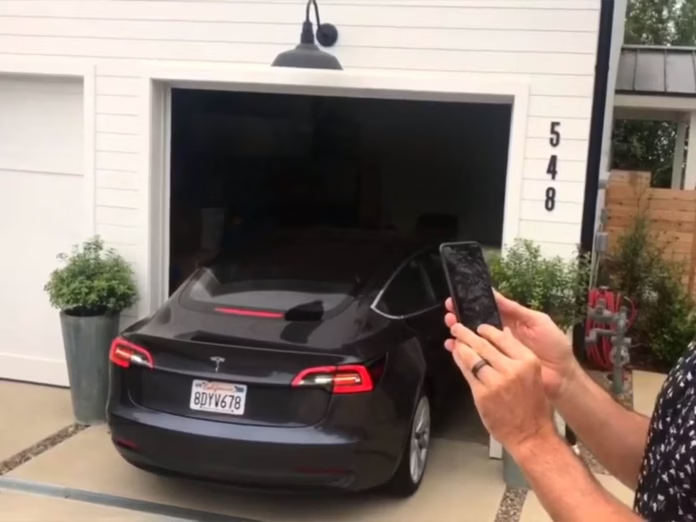
So, you’ve recently installed HomeLink in your Tesla to operate your new HomeLink-enabled garage door opener. You went through the setup process, everything looked perfect, and the usual signs of success were there—the indicator lights blinked, and your Tesla confirmed that programming was successful.
But when you hit the button to test it, nothing happens. The car behaves as if it’s transmitting, the interface looks normal, yet the garage door never opens. If you’re in this exact situation—or a close variation (intermittent operation, short range, delayed opening, or “works outside but not inside”)—you’re dealing with a classic HomeLink reliability problem. The good news is that most HomeLink issues come down to a handful of fixable causes: software hiccups, signal interference, antenna positioning, rolling-code synchronization, or even something as unexpected as the wrong lightbulb in the opener. Check the solutions below to restore consistent performance.
Expert perspective: HomeLink issues can be deceptive because the “programming” step can succeed while real-world operation fails. In other words, the Tesla may learn a signal pattern and report success, but the garage door opener may not reliably receive it, may reject it due to rolling-code sequencing, or may be overwhelmed by radio-frequency (RF) noise in the environment. That’s why the most effective approach is a structured troubleshooting process: confirm the car can transmit, confirm the opener can receive, remove interference, verify antenna placement, and then reprogram correctly.
Before you start (quick safety reminder): If you’re testing a garage door, always keep the doorway clear—no pets, children, vehicles, or objects in the path. If you’re troubleshooting a gate, do not stand in the swing path and be cautious of pinch points. Your goal is to restore reliable control, not to repeatedly trigger movement in a risky way.
How To Troubleshoot HomeLink Malfunctioning on Tesla?
To troubleshoot HomeLink malfunctioning on Tesla, start with the simplest high-success actions and work toward the more situational fixes. In many cases, a reboot resolves a temporary software glitch. If that doesn’t help, delete the signal recorded and start over to correct rolling-code sequencing issues or incomplete programming. Also, ensure nothing is blocking the opener’s signal and that the antenna is positioned properly (and that your Tesla is oriented so its front bumper/antenna “faces” the opener). Finally, consider interference sources—especially LED lightbulbs installed in the opener—which can dramatically reduce range. If LED interference is suspected, switching to CFL lightbulbs (or garage-door-rated LEDs) can restore normal signal reception.
As you can see, many ways exist to resolve HomeLink performance issues, and the “right” fix depends on the symptom you’re seeing. A system that works only at close range is usually an interference or antenna problem. A system that works after multiple presses often points to rolling-code synchronization or weak reception. A system that stopped working after an update may need a reset or reprogramming. Check the details below and apply the solution that best matches your scenario.
Expert troubleshooting method (recommended): Don’t change five things at once. Make one change, test, and note the outcome. HomeLink issues often come down to a single weak link. If you adjust multiple variables simultaneously, you can “fix” the issue without knowing what solved it—making it harder to prevent future recurrence.
Common HomeLink failure patterns and what they usually mean:
1) “Programmed successfully but never opens”: Typically a rolling-code issue, incorrect mode selection, incomplete pairing with the opener, or heavy RF interference.
2) “Works only if I’m extremely close”: Weak reception, antenna placement, interference (often LED bulbs), or physical obstruction/dirt on sensors or receiver area.
3) “Works sometimes / needs multiple presses”: Marginal signal strength, rolling code out-of-sequence, or inconsistent receiver conditions.
4) “Works outside but not from inside the garage”: Vehicle orientation or garage structure reducing signal path; Tesla’s directional antenna location and how you approach can matter.
5) “Used to work, then stopped”: Software glitch, location-based automation conflict, opener changes (bulb, receiver, antenna), or memory limits reached.
Possible Solution #1: Reset the System
A software-level hiccup can prevent HomeLink from functioning correctly, even if it was previously working without issues. This can happen after a software update, after multiple failed programming attempts, or sometimes after location-based automation settings become inconsistent. In these cases, a reset is often the fastest “first response” because it costs nothing, takes only a few minutes, and can restore normal behavior without reprogramming everything.
To do that, park your Tesla close enough to your HomeLink device (gate, garage door, etc.) so you can test immediately after resetting. Open the HomeLink settings page by tapping the HomeLink icon on the Controls screen. Now touch the device name you wish to reset and choose the “Reset Location” option.
Why “Reset Location” matters: Tesla’s HomeLink can use location logic for automatic activation (for example, auto-open when arriving). If the saved GPS location is off—even slightly—or if your approach angle has changed, the car may not trigger as expected. Resetting location can help re-align the activation point with where you actually need the signal to work reliably.
Testing tip: After resetting, test HomeLink in two ways: (1) manual press from the HomeLink menu, and (2) if you use it, auto-open/auto-close behavior when approaching/leaving. Manual testing isolates signal transmission; automation testing isolates GPS/location logic.
Note: If you cannot access the HomeLink settings, try rebooting your car several times. The settings may appear on the third reboot, allowing you to complete the reset procedure.
Expert note on “rebooting several times”: While it may sound unusual, modern vehicles are software-heavy systems. A reboot can clear a stuck UI state or a background service issue. If the HomeLink icon or settings are temporarily missing, multiple reboots can restore the interface and let you proceed with the reset.
If you want a more disciplined reset workflow: Park safely, close all doors, wait a moment, then reboot. After reboot, confirm the HomeLink icon appears. If it does, reset location and test within a consistent distance (for example, 5–10 meters), then test again farther out. This helps you confirm whether your issue is “no function” or “limited range.”
Possible Solution #2: Delete the Signal Recorded and Start Over
If your garage door doesn’t open reliably—or if it opens only after repeated presses—this is often the fix you actually need. It’s especially relevant when the door eventually opens but feels “laggy” and unpredictable (for example, 3 to 5 presses before it responds). If you pause between presses for five or more seconds, you may notice it takes significantly longer—sometimes up to 60 seconds—to open. That kind of behavior is frustrating, but it’s also a strong clue: your system is not consistently synchronized.
In most cases, the correct remedy is to erase the recorded signal and reprogram. A common culprit is rolling code misalignment—your opener may use rolling-code security, where the transmitter and receiver advance codes to prevent unauthorized access. If the sequence becomes out of sync with what the HomeLink device expects, your opener may ignore the signal until it sees an acceptable code. Reprogramming often restores the correct handshake and brings back consistent one-press operation.
Expert guidance: When you reprogram, do it with intention. Make sure the remote’s battery is strong, and keep the car positioned as recommended (front bumper facing the opener). If the opener requires a “learn” or “training” step, complete it promptly. Many rolling-code openers have a short pairing window—miss it and you’ll get “successful programming” on the Tesla side but no real-world response from the opener.
Note: You may also have reached the maximum number of remotes the system allows. Adding more will result in losing some. So, try to remove some remotes, reprogram the HomeLink and see whether that works.
Why remote limits matter: Many garage systems have a cap on how many transmitters/remotes they can store. If you’ve added multiple cars, multiple handheld remotes, keypad units, or have had the opener installed for years, you may be at the limit without realizing it. When the receiver memory is full, new programming can behave inconsistently—sometimes appearing to “take,” but not functioning as expected.
Practical test: If you suspect a memory limit, temporarily remove one remote from the opener’s memory (using the opener’s process), then reprogram HomeLink. If it suddenly becomes reliable, you’ve likely confirmed the receiver capacity issue.
When “delete and start over” is the best choice:
1) You get a success message, but the opener never responds.
2) It opens only after several presses.
3) It opens sometimes, but not consistently.
4) The problem began after replacing the opener remote, keypad, or receiver.
5) The problem began after a Tesla software update and a reset didn’t help.
Expert troubleshooting add-on: If you reprogram repeatedly and still get inconsistent results, move to the next solutions—interference, sensor blockage, and antenna positioning are the most common “hidden” reasons a reprogram doesn’t stick in real life.
Possible Solution #3: Ensure Nothing Is Blocking the Sensor
When HomeLink works only at close range, you should suspect signal interference or reception problems. But don’t overlook physical issues around the opener hardware itself. Move as close as possible to see whether the garage door opens reliably at very short distance. If it does, then reception is likely weak or blocked when you’re farther away. One surprisingly common cause is buildup: dust, dirt, debris, and even spider webs around the opener, receiver, or sensor area.
If you find that you need to press the HomeLink button several times before the door opens—or if it opens only from outside at close range but fails frequently from inside—inspect the opener environment carefully. Clean any accumulated dust, debris, and spider webs. Also check that nothing is physically blocking the opener components, and verify that any sensors (where applicable) are unobstructed and properly aligned.
Expert note: Even if the Tesla is transmitting perfectly, the opener still needs to “hear” the signal. A garage environment can be harsh: humidity, dust, insects, and vibration can gradually degrade reception. Cleaning is not a glamorous fix, but it’s often effective—especially if your opener hasn’t been inspected in a long time.
Best practice: After cleaning, test HomeLink from several distances: very close, mid-range, and your normal approach distance. This helps you determine whether the issue was physical blockage (which often improves range) or something else like RF interference (which may still limit distance).
Also check for “new obstructions”: Storage racks, metal shelving, parked vehicles, or even new home renovations can change signal reflection and absorption. If HomeLink used to work but stopped after changes in the garage, consider whether a large metal object now sits between the car and opener receiver.
Possible Solution #4: Check and Ensure the Antenna is Alright
If you’ve cleaned the opener area and you still have a short-range problem, focus on the antenna and signal path. If nothing is clearly reducing the signal’s strength (such as a metal garage door interference issue), the antenna may be your limiting factor. Antenna problems commonly show up as: “It works only if I’m right next to the door.”
Start with a simple test: move your Tesla close to the door and try to open it manually using HomeLink. If it works, back up gradually and test again to map your effective range. This range test is valuable because it tells you whether you’re dealing with a total failure (no response at any distance) or a reception weakness (works only close).
If the system fails mainly for automatic opening, try resetting the GPS location closer to the door. Sometimes the car triggers too early—before you’re within a workable range—making it seem like HomeLink “doesn’t work,” when it’s actually activating at the wrong spot.
Most garage openers include a short wire antenna (often about 18 inches). The antenna’s position matters more than many people realize. Ideally, it should hang straight down. If it’s coiled, pinned, tucked behind a metal bracket, or pressed against wiring, sensitivity can drop significantly. Also confirm that nobody accidentally cut the antenna wire while cleaning or working near the opener—this mistake is surprisingly common and can reduce range dramatically.
Note: The HomeLink antennas are often behind the front bumper and very directional. So, the way you get into your garage can affect its functioning. Some people will back in and then pull out forward. The antenna won’t have a strong range when the car points away from the garage.
Expert explanation of “directional” behavior: Tesla’s HomeLink transmitter location and the garage opener receiver location form a signal path. If you approach at an angle or with the car facing away, the signal may be partially blocked by the vehicle’s structure or reflected unpredictably. If you consistently back into the garage, test HomeLink while backing in versus while pulling in forward—many owners find a noticeable difference in response distance.
Advanced range-maximizing tip (non-invasive): Keep the car’s front bumper “aimed” toward the opener receiver when you want the best transmission reliability. If your garage layout forces a turn before the door, reset the activation point to a location where the car is better aligned with the receiver.
What to do if antenna adjustments don’t help: If you’ve confirmed a properly positioned opener antenna and you still have extremely short range, the issue may be RF interference (Solution #5) or an opener receiver sensitivity problem. At that point, a garage door technician can test receiver health, and some systems support external receiver/antenna upgrades for better coverage.
Possible Solution #5: Check the Opener’s Lightbulb
It feels almost too odd to be true, but one of the most common real-world reasons for a Tesla HomeLink not working complaint is the opener’s lightbulb—specifically, the type of bulb installed inside the garage door opener unit. Many owners only discover this after trying resets and reprogramming multiple times without success.
Here’s the key detail: some LED lightbulbs can emit electromagnetic interference in frequency ranges that disrupt the garage door opener’s RF receiver. If you upgraded to LED bulbs recently, the timing may match your HomeLink failure. The result is typically reduced range or inconsistent response. A common fix is switching to CFL bulbs, which often produce less interference for these older RF receiver designs.
Before buying a CFL bulb, confirm whether the bulb is the cause. Remove the bulb from the opener temporarily and test HomeLink. If it suddenly works better—especially at longer distance—you’ve likely found the culprit. Replace the bulb with a suitable alternative. Once corrected, your garage door should open more reliably as you approach and close consistently as well.
Note: You may find LED bulbs designed for use with garage door openers (if you must use LEDs). But you must pay more for them.
Expert guidance on bulb choice: If you prefer LEDs, look for models explicitly marketed as “garage door opener compatible” or “RF interference reduced.” These typically include internal shielding and better driver circuitry to minimize noise. The higher price often reflects that extra engineering.
Why this fix is so effective: HomeLink problems often appear like “weak signal,” and LED interference literally creates that condition by raising the noise floor the receiver experiences. In RF terms, your transmitter may be fine, but the receiver can’t distinguish the signal from the noise. Change the bulb, and the receiver can “hear” again.
When bulb interference is most likely:
1) HomeLink used to work, then stopped after you changed bulbs.
2) The opener works with the handheld remote only at close range.
3) Range is worse at night when the opener light is on.
4) Range improves when the opener light is off or bulb is removed.
Quick “signal hygiene” checklist (expert-level but simple): Keep the opener antenna straight down, avoid coiling it, avoid running it alongside power cables, and avoid noisy bulbs. These small changes often restore full-range behavior without any reprogramming.
What is the Tesla HomeLink Programming Procedure?
To program Tesla HomeLink correctly, you want to optimize two things: (1) clean signal transmission during training, and (2) correct mode selection and pairing steps so the opener accepts the learned signal. Park your Tesla with the antenna/front bumper facing the device you want to program, then create a new HomeLink entry, name the device, select the appropriate mode (UR-Mode, D-Mode, or Standard Mode), and follow the on-screen prompts. Finish by saving the setup so the Tesla retains the programmed behavior and can apply location-based logic if you enable it.
Here are the simple steps in detail—expanded with expert best practices so you don’t have to repeat the process more times than necessary.
Step #1: Park your Tesla
Park your Tesla model with the front bumper facing the device you want to program. This matters because, as discussed earlier, HomeLink transmission is directional in many practical scenarios. Also ensure the handheld remote (for the opener/gate) has a strong battery. If the remote battery is weak, the Tesla may “learn” a degraded signal during training, which can lead to inconsistent operation later. If there’s any doubt, replace the remote battery before you begin programming.
Expert positioning tip: Don’t park too far away. Many successful programming sessions happen within a reasonable training range, where the Tesla can capture the remote’s signal reliably and the opener can later receive the Tesla’s transmission without marginal strength. Also avoid parking where thick walls or metal structures sit between the car and opener receiver.
Environmental tip: If you suspect heavy RF noise (multiple routers, smart devices, or LED interference), consider turning off the opener light (or removing the bulb temporarily) during programming. This can improve training accuracy.
Step #2: Create HomeLink and Enter Your Device’s Name
Touch the HomeLink icon at the top of the Controls screen and choose the “Create HomeLink” option. Enter the device name (for example, “Main Garage,” “Gate,” “Community Entrance,” or “Workshop Door”), then tap “Enter” or “Add New HomeLink.” Clear naming helps you avoid selecting the wrong device later—especially if you plan to program multiple locations.
Expert naming convention tip: Use names that reflect both function and location (e.g., “Home Garage Door” vs “Gate”), particularly if you own multiple properties or use HomeLink for more than one opener.
Why naming matters operationally: Tesla’s UI makes it easy to tap a device quickly when arriving home. A clear label reduces accidental activation of the wrong opener, which can be a safety or security issue.
Step #3: Set Your Mode
On the “Add New HomeLink” screen, select the mode you want to use. You’ll see UR-Mode, D-Mode, and Standard Mode. Once you decide, tap the “Set Mode” button. Next, tap “Start” and follow the on-screen prompts to complete the procedure.
Expert note on mode choice: The correct mode depends on the opener’s protocol and compatibility characteristics. If you’re not sure which mode to pick, follow Tesla’s on-screen suggestions and be prepared to try again if the opener doesn’t respond after a successful-looking program. Mode mismatch can produce the “Tesla says success but nothing happens” symptom because the Tesla is transmitting, but not in a way the receiver expects.
Timing matters (especially with rolling codes): Some openers require a “learn” step on the opener itself, and there can be a short window where pairing is accepted. If you miss that window, the Tesla may still store a signal, but the opener won’t act on it. If your opener has a learn button and you’re instructed to use it, do so promptly and follow the prompts without delay.
Expert consistency tip: While programming, keep the remote at a consistent position and follow instructions closely. Small changes in remote distance or angle can change the signal strength and training quality.
Step #4: Save the Programming
Once you’ve programmed your device, tap the “Save” button. If your HomeLink doesn’t work immediately, repeat the process multiple times—methodically. Ensure that each retry is done with a clear test plan (same distance, same orientation, same environmental conditions) so you can confirm whether the change improved reliability.
Expert tip for repeat attempts: If your first attempt fails, don’t assume the hardware is defective. Reprogramming often succeeds on the second or third try, especially if the first attempt was done with a weak remote battery, poor car orientation, or an interference source like an LED bulb. Fix those variables and try again.
After saving, test in three phases:
1) Test while parked close (confirm basic communication).
2) Test from your typical approach distance (confirm real-world usability).
3) Test from inside/outside if your use case includes both (confirm structure/orientation effects).
Expert Diagnostics: Match the Fix to the Symptom (Quick Guide)
If you want a fast way to decide which solution to apply first, use this expert-style symptom matcher. This prevents wasted time and reduces unnecessary reprogramming.
Symptom A: Tesla says “successful,” but opener never responds.
Start with: Solution #2 (delete and reprogram). If still no response, check mode selection and then move to Solution #5 (bulb interference) and Solution #4 (antenna/orientation).
Symptom B: Works only when very close.
Start with: Solution #5 (bulb type) and Solution #4 (opener antenna straight down, Tesla orientation). Also apply Solution #3 (clean/inspect the opener area).
Symptom C: Needs multiple presses or has long delays.
Start with: Solution #2 (rolling code out-of-sequence). Also check remote limits and reprogram after removing old remotes if necessary.
Symptom D: Works outside but fails inside.
Start with: Solution #4 (directional antenna and approach angle) and “Reset Location” closer to the door. Also test with bulb removed (Solution #5) to rule out interference.
Symptom E: Used to work, then stopped suddenly.
Start with: Solution #1 (reset location / reboot), then Solution #2 (delete and reprogram). If the stop coincided with an opener bulb upgrade, jump directly to Solution #5.
Advanced Notes (Still Simple): Why HomeLink Can Fail Even After “Success”
HomeLink programming is not purely “digital” in the way people expect. It’s a radio system working in the real world. That means success depends on: signal integrity, receiver sensitivity, interference, and correct protocol pairing. Here’s why you can see a success message and still get no door movement.
1) The Tesla learned the remote, but the opener didn’t learn the Tesla. Some systems require the opener to accept the HomeLink transmitter through a learn process. If that step wasn’t completed properly, you’ll see “success” in the Tesla UI without real control.
2) Rolling-code sequences can drift. Rolling codes are designed to be secure. But if sequences get out of alignment, the receiver can reject the signal until it sees an acceptable code. That’s why Solution #2 is so effective.
3) Interference makes reception unreliable. LED bulbs and other sources can reduce the effective range dramatically. You may see “works sometimes” behavior that looks like a software issue but is actually RF noise.
4) Direction and structure matter. A garage can act like a box of reflections. Where the opener receiver sits, where your car is pointed, and what materials are between them can change results—sometimes dramatically. This is why antenna positioning and approach angle are included in the core solutions.
5) Receiver memory and remote limits can create weird behavior. If the opener is at its maximum remote capacity, new programming can seem “partial” or unstable. Clearing an older remote and reprogramming often restores reliability.
Conclusion
Our article above has discussed a few possible solutions to the Tesla HomeLink not working problem. We learned that a reboot (and resetting location) can resolve software or location-based issues that prevent HomeLink from behaving correctly. We also covered the most common real-world fix: deleting the recorded signal and reprogramming—especially when rolling-code sequencing is out of sync or when the opener receiver is at its remote limit.
All the other fixes are practical and easy to execute. Cleaning debris and spider webs can improve reception. Verifying the opener antenna position—and understanding Tesla’s directional antenna behavior—can immediately improve range. And while it sounds unusual, checking the opener’s lightbulb can be the key: LED bulbs can interfere with the RF signal, and switching to CFLs (or garage-door-compatible LEDs) often restores stable operation.
In other words, getting HomeLink on your Tesla to work reliably is usually straightforward once you match the fix to the symptom. Apply the steps, test methodically, and you’ll typically regain consistent one-press operation. Remember that you may need to program your HomeLink several times before success, especially if the first attempts were done with a weak remote battery, incorrect mode selection, or environmental interference.
Final expert recommendation: If you’ve rebooted, reset location, reprogrammed, confirmed antenna placement, ruled out bulb interference, and HomeLink still fails entirely—even at close range—consider contacting a garage door professional to evaluate the opener receiver/antenna health, and consult Tesla support if you suspect an in-vehicle HomeLink module issue. Most owners won’t need that step, but it’s the right escalation path when the common causes have been eliminated.

