
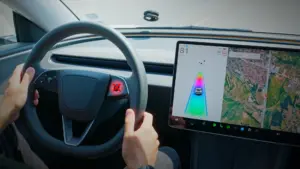

You’re cruising along the highway, ready to engage Autosteer for that classic Tesla “assistive driving” experience, when the screen flashes the message: “Autosteer Temporarily Unavailable.” It’s a jarring moment; especially if you’ve come to rely on Autosteer to reduce workload on long trips. The key thing to know is that this message is not automatically a sign that something is broken. Most of the time, it’s your Tesla doing exactly what it was engineered to do: withhold steering assistance when the system can’t confirm that conditions are safe enough to operate reliably.
Autosteer is a driver-assistance feature, not a self-driving feature. It depends on a continuous stream of trustworthy data; primarily camera visibility, lane boundary confidence, and stable vehicle dynamics. When any of those inputs drop below threshold (even briefly), the car protects you by disabling or limiting Autosteer until the system can verify its operating requirements again.
In this guide, we’ll go deep on why Autosteer becomes temporarily unavailable, what the warning really means, and how to restore functionality quickly. You’ll also learn the difference between temporary environment-driven lockouts and problems that point to calibration, software, or hardware issues. If you troubleshoot in the right order; visibility first, then resets, then calibration, then advanced steps; you can solve the majority of cases without wasting time or booking service unnecessarily.
Why Is My Tesla Autosteer Not Working?
When your Tesla displays an Autosteer “temporarily unavailable” message, it’s communicating a safety gate: one or more critical operating conditions are not being satisfied. In other words, the system does not have the confidence it needs to apply steering torque safely. That could be because cameras cannot see clearly, lane lines are unreliable, calibration isn’t complete, system temperature is out of range, or driver-assistance logic is restricted due to behavior rules (such as speed thresholds or strikeouts).
This distinction matters. The message can be frustrating, but it also helps set the right mindset: you are not necessarily “locked out” due to a failure; you may simply be in a situation where Autosteer can’t do its job responsibly. Once the trigger condition is removed, Autosteer often returns immediately.
Below are the most common causes, explained in practical terms, along with the fixes that work most consistently.
Camera and Sensor Obstructions
The most common culprit is simple: your Tesla’s cameras can’t see well enough. Tesla’s Autopilot and Autosteer logic is heavily dependent on clear camera visibility. If the car can’t reliably detect lane boundaries and surrounding context, Autosteer will disable itself until visibility is restored.
Common camera obstructions include:
- Dirt, mud, or road salt buildup
- Snow or ice covering camera lenses
- Water droplets from rain
- Condensation inside camera housings
- Bug splatter on the front cameras
From an expert perspective, the key issue isn’t merely “dirt.” It’s contrast loss. Autosteer needs to interpret lane markings, road edges, vehicles, and texture changes. Road spray, salt film, and bug residue can turn the camera image into a low-contrast blur. Even if the camera lens doesn’t look completely blocked to your eye, the image processing pipeline may classify it as unreliable; especially if lighting is complex (glare, dusk, oncoming headlights).
Also note: cameras are not the only inputs that can limit driver assist. Depending on model year and hardware configuration, additional sensors and internal checks can contribute to the decision to disable Autosteer. But in real-world ownership, a camera visibility issue is far and away the most frequent cause of “temporarily unavailable.”
Weather and Lighting Conditions
Even if your cameras are perfectly clean, environmental visibility can still drop below Autosteer’s minimum operating confidence. Tesla’s driver-assist features are designed to be conservative when the environment increases uncertainty; because uncertainty is where lane centering mistakes happen.
Poor visibility conditions that commonly cause Autosteer to become unavailable include:
- Heavy rain or snowfall
- Dense fog
- Glare from bright sunlight
- Oncoming headlights at night
- Low light at dawn or dusk
Your Tesla needs to clearly identify lane markings and road boundaries to keep the vehicle centered. Weather can hide paint lines, create reflections, or confuse the visual scene. For example, heavy rain doesn’t just add water droplets; it can create mirror-like sheen on asphalt, which reduces lane-line contrast. Fog reduces visible distance and can flatten the scene. Low sun can wash out one side of the lane marking. Strong headlight glare can bloom across the camera sensor, especially if moisture is present on the windshield.
When this happens, Autosteer disengagement is not “overprotective”; it’s a sign the system is working as intended. In poor visibility, your best safety tool is still human judgment paired with conservative speed and increased following distance.
Practical takeaway: If Autosteer becomes unavailable in bad weather, don’t waste time cycling resets. Fix the visibility variable (clean lenses, reduce condensation, wait out the weather) and the feature often returns on its own.
Road Condition Limitations
No lane markings, no reliable lane centering. While Tesla’s perception has improved over time, Autosteer still performs best when the car can confirm lane boundaries with high confidence. If it can’t, it will limit or disable steering assistance rather than guess.
Your Tesla requires clear, visible lane markings to keep you safely centered in your lane. Problems occur when:
- Lane lines are faded or missing
- Roads are under construction
- Lane markings are covered by snow
- You’re driving on extremely narrow roads
- You’re navigating complex intersections
Construction zones deserve special attention. Temporary lane shifts, old markings partially removed, cones, and uneven edges can create conflicting visual cues. If the system detects mismatch or low confidence, it may throw “temporarily unavailable” or prompt you to take over immediately. This is one of the most common situations where Autosteer becomes unreliable even in clear weather.
Another overlooked limitation is road geometry. Very tight curvature, abrupt merges, lanes that widen/narrow quickly, or confusing intersection paint can force Autosteer to downgrade confidence. The message may appear even though the car is not malfunctioning.
Calibration Requirements
After certain kinds of service or replacement work; especially windshield replacements; your Tesla’s cameras may require recalibration before Autosteer becomes available again. This is normal. The system needs to rebuild its internal reference model for camera alignment, perspective, and lane geometry in the real world.
This calibration process typically requires driving approximately 20–100 miles under favorable conditions. It’s not about “distance for distance’s sake.” It’s about collecting enough varied, high-quality visual data; lane lines, road edges, traffic, and lighting; so the system can confirm that each camera’s interpretation aligns correctly with the vehicle’s motion.
During calibration, you’ll need:
- Clear weather
- Well-marked roads
- Moderate traffic conditions
- Daytime driving
Expert tip: Calibration tends to complete faster on highways with consistent lane markings and moderate traffic than it does on rural roads with inconsistent paint or heavy shadows from trees. If you’re trying to finish calibration efficiently, choose a well-marked divided highway during daylight.
Speed Violations
If you exceed speed limits or exceed Autosteer’s maximum allowable speed while Autosteer is engaged, you can lose access to the feature for the remainder of the drive. This is essentially a behavioral safety policy. Tesla Vision-based vehicles have a maximum Autosteer speed of 85 mph, while older radar-equipped models can go up to 90 mph. If you go beyond these limits, you may need to park and restart the vehicle to restore Autosteer availability.
There’s a practical lesson here: even if your Tesla feels stable above those speeds, driver assist features operate under defined safety envelopes. When you exceed that envelope, the system often reduces capability to ensure you’re fully engaged in manual driving; especially because stopping distance, lane-change complexity, and perception uncertainty increase significantly at very high speed.
Quick Fixes for Autosteer Unavailability
Before you schedule service, start with the troubleshooting steps that solve most Autosteer issues. The goal is to address the top causes in order of likelihood: visibility first, then software state, then deeper resets. A structured approach saves time and reduces the chance of “chasing ghosts.”
Before calling service, try these troubleshooting steps that resolve most Autosteer issues:
Clean Your Cameras
The first and easiest fix is also the most common: clean the cameras and the glass in front of them. Tesla recommends regularly cleaning camera lenses before driving, especially in bad weather or after highway travel where bug impacts and road film build quickly.
Camera locations to check and clean:
- Front windshield above the rearview mirror
- Side pillars (B-pillars)
- Front fenders
- Rear license plate area
Use a soft, lint-free cloth with a small amount of water to gently wipe each lens. For stubborn residue (bug splatter, road tar film), a small amount of isopropyl alcohol can help; but avoid harsh chemicals, abrasive pads, or ammonia-based glass cleaners near camera areas. Scratching the glass or leaving a smeared film can reduce image clarity more than the original dirt.
Expert cleaning approach: Clean the camera area last, after you’ve cleaned the rest of the windshield. That way, you’re not dragging grit across sensitive areas. If road salt is heavy, rinse first to reduce scratching risk.
Perform a Soft Reboot
Minor Autosteer issues; especially those that appear right after you start driving or right after a software update; can sometimes be resolved by rebooting the vehicle’s interface computer. This doesn’t “fix” visibility issues, but it can clear transient software glitches, hung processes, or UI-state mismatches.
To perform a soft reboot:
- Put your car in Park
- Press and hold both scroll wheels on your steering wheel
- Hold until the screen goes black (about 10-15 seconds)
- Wait for the Tesla logo to appear and the system to restart
This quick reset often clears minor software hiccups without erasing your personal settings or trip history. After the reboot, give the vehicle a minute or two to fully reload driver assistance services, then test Autosteer again in a safe, well-marked environment.
Expert note: If Autosteer is unavailable due to camera calibration or environmental visibility, a reboot will not magically restore it. Rebooting is best used for UI-related anomalies, temporary software glitches, or post-update odd behavior.
Try a Full Vehicle Power Cycle
If the issue persists through a soft reboot, a deeper reset may help. A full power cycle allows more modules to shut down cleanly and restart, which can resolve stubborn state issues; especially after updates, after a low-voltage event, or after a rare system hang in the driver-assistance stack.
To power cycle your Tesla:
- Park your vehicle in a safe location
- Go to Controls > Safety & Security > Power Off
- Wait at least 2 minutes without touching anything (no doors, pedals, or screen)
- Press the brake pedal or open a door to wake the vehicle
This deeper reset can be particularly useful if Autosteer became unavailable after a software update or after the vehicle experienced a temporary glitch. The “don’t touch anything” step matters: opening doors, pressing pedals, or interacting with the touchscreen can wake modules before the power-down completes.
Practical tip: After power cycling, drive for a few minutes on a well-marked road to allow systems to reinitialize. Then attempt Autosteer again.
Check Your Headlight Settings
Some owners have noticed Autosteer may become unavailable when headlights are manually set to OFF instead of AUTO, especially in low-light scenarios. Autosteer’s performance depends on camera image quality, and lighting choices can influence what cameras can detect. For consistent results, ensure your headlights are set to AUTO before attempting to engage Autosteer.
Expert context: This doesn’t mean headlights are the “cause” of Autosteer failure in all cases; it means lighting conditions can be part of the confidence calculation. AUTO headlight behavior helps ensure the car maintains a predictable lighting state for perception during dusk, dawn, tunnels, and changing weather.
Advanced Troubleshooting Methods
If basic cleaning and resets don’t restore Autosteer, you may be dealing with calibration state, persistent camera subsystem issues, or an FSD/Autopilot compute state that needs a deeper reset. The methods below are more advanced; use them carefully and only when you can park safely and follow steps precisely.
If basic fixes don’t solve your Autosteer issues, these more advanced methods might help:
Service Mode Camera Reset
Tesla provides a Service Mode interface intended for diagnostics and deeper system actions. In some cases, resetting the driver-assistance stack can restore Autosteer; particularly if the system is stuck in an abnormal state after service work or software changes.
To access this mode and reset your cameras:
- Go to Controls > Software
- Press and hold your Tesla model name
- Enter password: SERVICE
- Navigate to Driver Assist > Cameras
- Select “Reset DAS” (Driver Assistance System)
- Follow on-screen instructions to complete the reset
This procedure forces a more thorough reset of the camera/driver assistance subsystem and may initiate recalibration behaviors. After completing it, plan to drive under good conditions (clear lanes, daylight) to allow the system to re-establish confidence.
Expert caution: Service Mode is powerful. If you are uncomfortable navigating service menus, stop here and schedule service. Do not change unrelated settings; stick to the specific reset procedure.
Deep Sleep for FSD Computers
On vehicles equipped with Full Self-Driving capability, Autosteer depends on the driver-assistance compute stack remaining stable. If the system seems persistently “stuck” (especially after repeated restarts), forcing a deep sleep can allow the FSD computer to fully power down and restart cleanly.
To force a deep sleep reset:
- Turn off Sentry Mode
- Exit the vehicle completely
- Lock the car and walk away
- Leave undisturbed for 30+ minutes
- Return and wake the vehicle normally
This extended undisturbed period is important because certain background features (including Sentry Mode) keep the vehicle awake. Allowing full sleep can reset deeper compute states and can resolve persistent Autosteer unavailability tied to internal software state issues.
Expert tip: If you live in a busy area where the vehicle is frequently waking (Sentry events, nearby movement), consider leaving it in a calm garage environment to ensure it truly sleeps.
Camera Condensation Removal
Condensation inside camera housings is a real-world issue, especially with rapid temperature swings (cold night to warm day), heavy humidity, or after washing. If moisture forms inside the camera enclosure, cleaning the outside lens won’t help; the image will remain hazy from internal fogging.
If condensation has formed inside your camera housings, you’ll need to actively dry them out:
- Precondition your cabin to a warm temperature (75-80°F)
- Direct air vents toward door pillars where cameras are located
- Run climate control for 15-30 minutes
- Drive normally to allow airflow to help dry remaining condensation
In extreme cases, park in a warm, dry environment for several hours to fully remove moisture. If condensation is frequent and persistent, it may suggest sealing issues. In that scenario, document the behavior (photos help) and contact Tesla service, because repeated moisture can degrade camera image quality long-term.
When Camera Calibration is Required
Camera calibration is one of the most misunderstood reasons Autosteer becomes unavailable. Calibration is not a “nice to have.” It’s the car verifying that its perception system is geometrically aligned with the real world. If that alignment is uncertain, Autosteer is withheld.
After certain events, your Tesla will need to complete a full camera calibration before Autosteer becomes available again:
What Triggers Calibration?
Several events can trigger the need for camera recalibration:
- Windshield replacement
- Camera replacement or service
- Autopilot computer replacement
- Significant body work or collision repair
- Software updates that improve camera functionality
Any event that changes camera physical position, windshield geometry, mounting alignment, or internal software interpretation can make recalibration necessary. It’s also possible to see calibration prompts after certain updates as Tesla refines perception models and wants the car to re-confirm real-world reference data.
How to Complete Calibration Successfully
To complete camera calibration efficiently, treat it like a “data collection drive.” You’re giving the system clean inputs so it can complete its internal checks faster.
To complete camera calibration efficiently:
- Drive on well-marked highways with clear lane lines
- Maintain speeds between 45-70 mph when possible
- Avoid extreme weather conditions
- Drive during daylight hours
- Continue driving until calibration completes (typically 20-25 miles, but can take up to 100)
A progress bar in your vehicle settings shows calibration status. Be patient; driving on poorly marked roads or in difficult lighting will slow the process. If you’re repeatedly attempting calibration in rain, fog, or heavy glare, the car may “collect data” but not accept it as high confidence, extending completion time.
Expert strategy: If calibration seems stuck, try a different route with better lane paint. A 15-mile highway loop with crisp lane markings can be more effective than 50 miles of patchy rural roads.
Environmental Factors That Affect Autosteer
Autosteer is impressive technology, but it’s not magic. It has operational boundaries, and understanding them prevents frustration. If you know what conditions reduce lane detection confidence, you can anticipate when Autosteer may become intermittent and switch to manual driving before the system forces a disengagement.
Understanding the environmental limitations of Autosteer helps set realistic expectations:
Road Marking Requirements
Autosteer performs best on roads with the following characteristics:
- Clear, high-contrast lane markings
- Standard lane widths (9-12 feet)
- Minimal road curvature
- Limited construction zones
- Minimal intersection frequency
Roads with faded, missing, or non-standard markings will often trigger temporarily unavailable messages. Another common scenario is newly paved roads where lane paint hasn’t been applied yet. The car may detect road edges inconsistently, but without reliable lane boundaries it will prefer manual control.
Expert driving note: Even when Autosteer is available, always scan the lane markings yourself. If you notice a merge, lane shift, construction cones, or inconsistent paint, assume the system may disengage and keep your hands and attention ready.
Weather Impact Table
| Weather Condition | Impact Level | Likely Result |
|---|---|---|
| Light rain/snow | Moderate | Reduced speeds, possible warnings |
| Heavy rain/snow | Severe | Autosteer unavailable |
| Fog | Severe | Autosteer unavailable |
| Bright sunlight/glare | Moderate to Severe | Intermittent availability |
| Nighttime | Minimal to Moderate | Normal function on well-lit roads |
| Dust storms/smoke | Severe | Autosteer unavailable |
This table is a helpful rule-of-thumb, but remember: the system’s response depends on the combination of factors. For example, light rain plus glare plus dirty windshield can produce “severe” results even if light rain alone would only be moderate. Autosteer confidence is cumulative; multiple small issues can add up to a lockout.
Temperature Extremes
Tesla’s cameras and computers have operating temperature limits. Extreme temperatures can temporarily reduce performance or force protective behavior. In some conditions, Autosteer may become unavailable until temperatures normalize:
- Below-freezing temperatures can cause camera lens fogging
- Extreme heat can cause computer thermal throttling
- Rapid temperature changes can cause condensation inside camera housings
In cold climates, preconditioning isn’t just about cabin comfort; it can meaningfully reduce camera fogging and condensation issues. In hot climates, parking in shade and using cabin overheat protection (where applicable) can help keep electronics within stable ranges, reducing intermittent performance limits.
Preventive Maintenance for Reliable Autosteer
If you want Autosteer to work consistently, treat camera clarity like you treat tire pressure: a small routine effort prevents disproportionate frustration later. Most “temporarily unavailable” episodes are preventable with basic habits.
Keep Autosteer working reliably with these preventive measures:
Regular Camera Cleaning
Make camera cleaning part of your normal routine. A quick wipe before driving (especially after rain, snow, or dusty roads) prevents many Autosteer lockouts before they begin. The goal is to keep the camera image high-contrast and smear-free.
Items to keep handy:
- Microfiber cloths
- Small spray bottle with water
- Camera lens cleaning wipes
- Small soft brush for removing dirt
Expert add-on: If you travel in winter road-salt regions, consider keeping a small jug of washer fluid in the trunk (in addition to cloths). Salt film is one of the fastest ways to degrade camera visibility even when the windshield looks “mostly fine.”
Software Update Management
Keep your Tesla software current. Updates frequently include improvements to Autopilot perception, lane line interpretation, wet-weather image processing, and camera fault detection. In many cases, software updates also address known issues that can cause intermittent Autosteer availability.
Check for updates regularly by:
- Connecting to WiFi when parked
- Going to Controls > Software
- Checking for available updates
- Installing updates promptly when available
Expert caution: After major updates, it’s normal for certain systems to “settle” for a drive or two. If Autosteer behaves oddly immediately after an update, try a clean highway drive after a reboot before assuming there is a hardware problem.
Autopilot Suspension Prevention
Autosteer availability is also affected by driver monitoring and safety policy. Tesla uses “strikeouts” when the driver fails to respond to attention prompts. Accumulating too many can result in temporary suspension of Autosteer.
Avoid getting Autopilot “strikeouts” that can lead to temporary suspension of Autosteer. Five strikeouts result in a week-long suspension of Autosteer functionality.
To prevent strikeouts:
- Always keep your hands on the wheel when using Autosteer
- Apply slight steering force to let the system know you’re attentive
- Respond promptly to attention reminders
- Avoid using Autosteer on unsuitable roads
Expert framing: Strikeouts are not “punishment” in the emotional sense; they’re an enforcement mechanism to keep Autosteer used as designed. If you treat Autosteer like a hands-off system, you increase risk and reduce feature availability. Treat it like lane-centering assistance that still requires active supervision, and you’ll avoid most strikes.
Common Autosteer Error Messages and Their Meanings
Not all Autosteer warnings are equal. Tesla’s message wording is often a clue to which subsystem is limiting the feature; visibility, lane confidence, calibration state, or an urgent takeover request. Understanding the specific message helps you respond correctly and avoid wasting time on irrelevant fixes.
Understanding specific error messages helps identify the exact problem:
“Autosteer Temporarily Unavailable – Reduced Front Camera Visibility”
This message indicates the front-facing cameras do not have sufficient clarity for safe lane centering. This is most commonly caused by:
- Dirt, water, or debris on front windshield cameras
- Glare from low sun angle
- Heavy precipitation
Clean your windshield thoroughly, including the area in front of the rearview mirror where the camera cluster is located. Also check for interior film or fogging on the windshield; especially if the cabin is humid; because the camera looks through the same glass you look through.
Expert tip: If glare is the trigger, cleaning won’t always help. Changing your route direction, waiting for the sun angle to shift, or using the sun visor strategically may restore availability sooner.
“Autosteer Temporarily Unavailable – Take Control Immediately”
This urgent message means Autosteer detected conditions that require immediate driver takeover. This can happen when the system suddenly loses lane confidence, receives conflicting sensor data, or identifies a scenario beyond its reliable control envelope.
Common triggers include:
- Sudden loss of lane markings
- Vehicle cutting in front of you
- System uncertainty about road conditions
- Sensor data disagreement
When this message appears, take control immediately and drive manually. Don’t try to re-engage Autosteer repeatedly in the same spot; continue through the complex area, then try again once conditions improve (clear lane paint, stable traffic behavior).
Expert perspective: This message is the system doing its job; handing control back when it cannot confidently do what it’s asked. Treat it like a warning that the road environment has changed faster than the system can reliably interpret.
“Autosteer Temporarily Unavailable – Drive to Calibrate Cameras”
This message specifically indicates camera calibration is required. There is no shortcut other than driving under favorable conditions until calibration completes. The message will disappear automatically once the calibration process finishes and the system confirms its alignment and confidence thresholds.
Expert reminder: Calibration speed depends on data quality. Clean cameras + daylight + crisp lane lines = faster completion. Poor conditions can stretch the timeline to the upper end of the 100-mile range.
Can I Still Use Traffic-Aware Cruise Control?
If Autosteer is unavailable, many drivers ask the next logical question: “Do I still have Traffic-Aware Cruise Control (TACC)?” The answer depends on why Autosteer is unavailable. Autosteer and TACC share perception inputs, but they are not always disabled together. Some faults block both; others block steering assistance while leaving speed control available.
When Autosteer is unavailable, you might wonder if you can still use basic cruise control features. The answer depends on what’s causing the Autosteer unavailability:
| Cause of Unavailability | Traffic-Aware Cruise Control Status |
|---|---|
| Camera visibility issues | Usually unavailable |
| Speed violations | May still be available |
| Camera calibration needed | Usually unavailable |
| Temporary system glitches | May still be available after reset |
| Road condition limitations | May still be available |
If Traffic-Aware Cruise Control is still available, you can typically activate it by pulling down once on the gear stalk (or using the touchscreen on newer models). Just remember: you are steering manually, so keep both hands ready and treat it like conventional cruise control with adaptive following.
Expert safety note: If camera visibility is compromised enough to disable Autosteer, there’s a strong chance TACC may also be impaired. Even if TACC is available, be conservative; visibility limitations can affect the vehicle’s ability to interpret traffic scenes and manage speed smoothly.
What’s New with Tesla Autosteer
Autosteer is not a static feature. Tesla continually updates driver-assistance behavior through software revisions, perception improvements, and hardware refinements. That means your Autosteer experience can change over time; sometimes for the better (improved lane detection), sometimes with new restrictions (policy changes, speed limits), and often with smarter fault detection that makes “temporarily unavailable” messages more accurate.
Tesla continues to improve Autosteer functionality through software updates and hardware enhancements:
Recent Improvements
- Speed limit increases for Tesla Vision vehicles from 80 mph to 85 mph
- Enhanced B-pillar blindness detection to better identify camera obstructions
- Improved wet weather performance with better image processing
- More robust lane line detection for challenging road conditions
Each of these improvements addresses a real-world failure mode. Wet weather and glare are classic reasons for intermittent Autosteer. Better image processing can reduce false negatives (where the system disables itself unnecessarily) while improving safety in scenarios where older perception pipelines struggled.
Future Developments
Tesla is actively working on solutions to improve camera reliability and reduce the frequency of unavailability events, including:
- Advanced camera cleaning systems similar to windshield washers
- Improved condensation prevention through better sealing and airflow
- More resilient camera hardware for extreme weather conditions
- Software improvements to function with partial camera visibility
These improvements should gradually reduce the frequency of “temporarily unavailable” messages, making Autosteer more dependable across a wider range of conditions. That said, no camera-based system can overcome physics entirely. Severe fog, heavy snow, and obscured lane markings will always create scenarios where driver assistance must step back and hand control to the driver.
Expert Decision Tree: What to Do When “Autosteer Temporarily Unavailable” Pops Up
If you want a clear, in-the-moment process (the same logic many technicians and experienced owners follow), use this quick decision tree. It helps you identify whether you’re dealing with environment, calibration, policy limits, or system state issues.
- Is the road wet/snowy/foggy or is glare severe? If yes, assume environment is the primary cause. Drive manually until conditions improve.
- Are the cameras/windshield dirty? If yes, clean first; don’t reboot first. Visibility problems won’t be fixed by software resets.
- Did you recently replace windshield, cameras, or have body work? If yes, expect calibration. Drive 20–100 miles under ideal conditions.
- Did the message appear after speeding with Autosteer engaged? If yes, park and restart (as needed) to restore access.
- Did the issue appear randomly on a perfect day with clean cameras? Try a soft reboot, then a full power cycle.
- Still persistent after resets and good driving conditions? Consider Service Mode reset / deep sleep and then schedule service if unresolved.
This order matters because it avoids the most common mistake: rebooting repeatedly when the real problem is dirt, condensation, or lane markings. Start with what the cameras see. Then work inward to software state.
When to Contact Tesla Service
Most Autosteer unavailability events are temporary and self-resolving once conditions improve. However, you should consider booking service if any of the following patterns occur:
- Autosteer is unavailable consistently in clear weather on well-marked roads after cleaning and resets.
- You see repeated camera-related warnings that do not correlate with dirt, weather, or glare.
- Condensation inside camera housings is persistent or returns frequently.
- Calibration never completes even after 100+ miles of ideal driving.
- Autosteer and TACC are both unavailable and the car displays multiple driver-assist warnings.
When reporting the issue, include context: weather conditions, road type, whether it happened after a wash or service, whether the message was “reduced front camera visibility” or “drive to calibrate,” and whether it is intermittent or constant. That information helps Tesla narrow the cause faster.