
Tesla’s cruise control is designed to let you maintain a steady speed without constantly holding the accelerator pedal; provided the system is confident that conditions are safe enough to do so and no limiting factors are detected. In its most basic form, this means you select a target speed and the vehicle holds that speed automatically. When the system’s Traffic-Aware Cruise Control (TACC) is available, Tesla can also adapt speed to the vehicle ahead. But regardless of whether you’re using standard cruise control or traffic-aware functionality, the principle remains the same: the car must have reliable sensor input, stable software, and a clear understanding of its surroundings.
In everyday driving, this is one of the most useful comfort features Tesla offers. Long highway miles are where cruise control really shines; especially on consistent, open stretches where speed variations are minimal. The feature reduces driver workload, helps maintain a smooth pace, and significantly lowers foot and ankle fatigue. For many owners, cruise control quickly becomes part of their normal driving rhythm, particularly during commutes, road trips, or long-distance interstate travel.
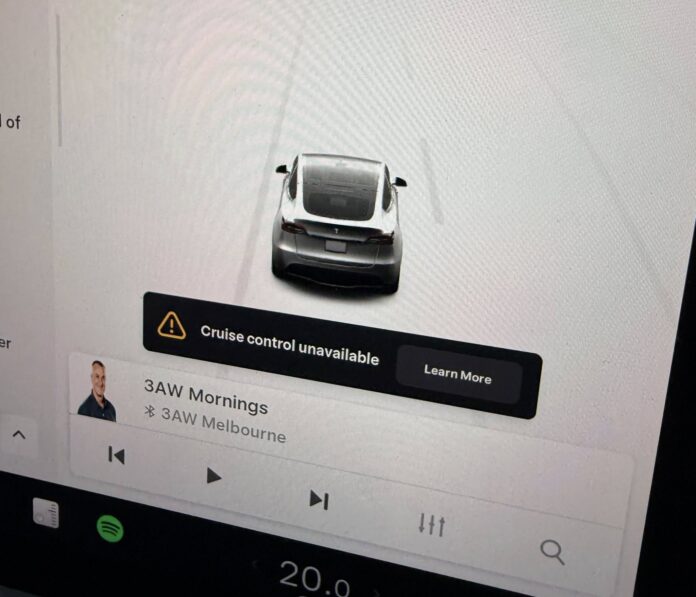
That’s why it’s so frustrating when cruise control suddenly won’t engage. A growing number of Tesla owners report seeing messages such as “Cruise Control Unavailable” (or similar alerts tied to Autopilot/driver assistance) and finding that the function is greyed out, refuses to activate, or disables mid-drive. In some situations, the alert clears on its own. In others, it persists until you address the underlying trigger.
To help you respond with confidence instead of guesswork, we’ve compiled an expert-friendly guide that explains what the message means, why it occurs, what symptoms tend to appear alongside it, and the most effective remedies. Whether you drive a Model 3, Model Y, Model S, or Model X, the troubleshooting logic is broadly similar: cruise control depends on sensors and software, and the system will disable itself when it cannot safely maintain speed or track traffic conditions.
Throughout this guide, remember one key point: Tesla is intentionally conservative about disabling driver-assist features. When the car is uncertain; due to visibility, calibration, or software state; it will typically choose to restrict features rather than risk incorrect behavior. From a safety engineering perspective, that is the correct design decision, even if it feels inconvenient in the moment.
What is the Tesla Cruise control Unavailable Alert?
If you’re seeing the unavailable Tesla cruise control alert, the vehicle is informing you that you cannot use cruise control at that time. In practical terms, the system has either detected a condition that prevents safe operation (such as reduced sensor visibility) or the driver-assistance stack is temporarily unavailable due to calibration or software state.
When the alert is active, the car will typically refuse to engage cruise control even if you attempt to activate it with the stalk or steering wheel controls. Depending on model and software version, you may also notice that other driver-assist features are restricted at the same time, such as traffic-aware cruise control, Autosteer, or additional Autopilot functions.
It’s easy to understand why this becomes frustrating; especially when you’re on a long drive and you’re expecting cruise control to do what it normally does: keep speed steady, smooth out throttle input, and reduce fatigue. Losing the feature mid-trip can feel like a step backward, particularly if you’ve built your driving habits around it.
Tesla’s official guidance notes that Autopilot features; including Traffic-Aware Cruise Control; can become unavailable from time to time for a range of reasons. The vehicle is essentially telling you, “I’m not confident enough in my inputs right now to control speed on your behalf.”
In many cases, the feature restores itself on the next drive, after conditions change or the car has time to reinitialize systems. This is common after temporary sensor obstruction (mud, rain spray, snow), transient lighting problems, or short-lived software states. Tesla’s systems often recover automatically after a restart cycle or once the vehicle moves into conditions with clearer visibility.
However, there are also situations where the feature does not restore on its own. That’s usually a sign that the trigger condition is still present; like persistent camera obstruction, lingering condensation, calibration that has not completed, or a software version mismatch that needs an update.
It’s also important to clarify what this alert does not mean. In most cases, “Cruise Control Unavailable” does not mean your Tesla is unsafe to drive. Cruise control is a convenience feature; your car remains drivable under manual control. You can continue your trip by driving normally; accelerating and braking as you would in any vehicle without cruise control.
That said, don’t ignore the alert entirely. If cruise control is unavailable due to reduced sensor visibility, those same visibility limitations could also affect emergency braking, forward collision warnings, or other driver-assistance behaviors. The car may still drive fine, but your situational awareness should be higher, especially in poor weather or heavy traffic.
So the big question becomes: why has your cruise control suddenly become unavailable; and what is the fastest, safest path to getting it back?
Causes and Fix for Tesla Cruise Control Unavailable
Tesla’s owner’s manual lists multiple reasons cruise control or Traffic-Aware Cruise Control can become unavailable. The vehicle continuously evaluates sensor input quality, environmental conditions, and system readiness. If any key component falls below an acceptable confidence threshold, the car will typically disable cruise control rather than operate with uncertain data.
These causes include the following:
1. Reduced front radar visibility
Your Tesla is equipped with a front radar located within its front bumper. Radar contributes to forward object detection by sending and receiving radio waves and interpreting reflections from vehicles or obstacles ahead. When radar input is compromised, the vehicle may be less able to judge distance, relative speed, or closing rates accurately; especially in conditions where camera perception is also challenged.
One of the most common real-world reasons for reduced radar visibility is simple contamination: prolonged driving can allow debris, road salt, bugs, mud, snow, slush, or general grime to accumulate over the radar’s effective “view.” Even if the bumper looks only lightly dirty, a thin film can interfere with sensor performance; particularly in freezing conditions where slush or ice forms uneven layers.
Tesla’s guidance is generally to continue driving, because losing cruise control does not prevent you from driving manually. That’s correct: your vehicle still functions normally as a car. But you will need to maintain speed yourself and be more mindful of traffic spacing since you’re no longer receiving cruise assistance.
The fix for this cause is usually straightforward: thoroughly clean the area where the radar is located and remove anything that could be blocking or distorting the sensor’s line of sight. Use a gentle approach; avoid aggressive scraping (especially if ice is present) and avoid harsh chemicals that could damage paint or trim. If you are in freezing weather, letting the vehicle warm up and using appropriate defrosting methods can reduce the risk of scratching or cracking surfaces.
If you’re not sure where the radar is located on your specific model, consult the owner’s manual so you clean the correct region. Tesla placements can differ across models and production years.
Also note: if the alert remains after cleaning, there may be more than one contributing factor. For example, you might have both radar contamination and camera visibility reduction. In that case, move to the next troubleshooting steps instead of repeating the same one.
Expert tip: In addition to dirt, check for any physical damage to the bumper area (impact, cracking, missing trim, misalignment). A sensor can be clean but still impaired if the mounting position is disturbed. If you suspect physical damage, it’s best to have Tesla inspect it, because radar alignment and mounting can be safety-critical for driver-assistance behavior.
2. Reduced front Camera Visibility
Cruise control; especially traffic-aware functionality; also relies heavily on the front camera system to determine whether there is a vehicle ahead, how lanes are marked, and what the driving scene looks like. Cameras are the car’s “eyes.” If those eyes cannot see clearly, the vehicle will often refuse to engage cruise control as a self-protection measure.
This matters for safety. When the camera can reliably identify a vehicle ahead, the system can adapt speed and spacing, helping reduce collision risk. But if visibility is unclear and the car cannot confidently judge whether a vehicle is present or how quickly it’s closing, it will disable cruise control rather than guess.
If you see the alert and suspect camera visibility is the issue, think in terms of “what would a human driver struggle to see?” Many of the same factors apply: dirt, rain spray, frost, road grime, bright sunlight glare, heavy shadows, fog, mist, or even low sun angles that wash out contrast. Any of these can reduce camera confidence. The system is designed to detect that reduction and protect itself by limiting features.
Again, Tesla indicates that it is acceptable to continue driving manually. That is true: the vehicle will remain drivable. But you should adjust your expectations; driver-assistance features may remain limited until camera visibility returns to normal.
To fix this issue, you must remove whatever is disrupting camera visibility. In many cases, that means physically cleaning the relevant camera areas. Use clean microfiber cloths and proper automotive glass cleaners where appropriate. Avoid abrasive materials that could scratch the camera housing or the windshield area in front of it.
However, not all visibility problems are external. One particularly common scenario is condensation inside the camera housing or behind the windshield area where cameras are mounted. Condensation can create foggy internal surfaces that you cannot wipe away from the outside.
If condensation is present, you may be able to clear it by drying and warming the area using the climate system. You can do so by following the listed steps
- Set the air conditioner to high
- Turn on the front windshield defroster
These steps can reduce humidity at the glass surface and help evaporate moisture trapped near the camera area. The goal is to restore a clear optical path so the camera can accurately interpret the road scene again.
Once the camera regains visibility, the alert should disappear and cruise control should become available again. In many cases, the restoration isn’t immediate; the system may require a short period to re-evaluate sensor quality. If you have cleaned the cameras and improved visibility, give the car a few minutes of driving in stable conditions to confirm whether the alert clears.
Expert tip: Camera issues can also follow windshield replacement or camera service work. If the glass was replaced and the camera mount or bracket alignment changed even slightly, the car may require recalibration. In that scenario, visibility may be fine, but the system is still “unavailable” because it is not yet calibrated. That leads directly into the calibration section below.
3. Software update
While some owners describe this as “speculative,” it is professionally reasonable to treat software state as a legitimate troubleshooting category for a Tesla. Unlike traditional vehicles where mechanical systems dominate functionality, Tesla vehicles are highly software-driven. Many comfort features and driver-assistance functions are controlled by software layers that rely on stable firmware, sensor drivers, and continuous refinement through updates.
Your Tesla is more computerized than mechanical, and it routinely receives updates intended to improve performance, add features, or correct known bugs. That also means that if your vehicle is running an outdated software version; or if an update has partially completed, failed, or introduced a temporary glitch; you may experience unusual behavior in features such as cruise control.
If your car is on an older software version, it may be more likely to experience errors or feature limitations that newer revisions have already addressed. Tesla’s update cycle is one of its strengths, but it also means that keeping software current is part of normal ownership, not just a “nice extra.”
In most cases, you will see an update notification either through the Tesla app on your phone or on the car’s center screen. When that alert appears, download and install the update at a time when the car can remain parked and undisturbed.
After installing a new update, it is common for the vehicle to reinitialize systems, perform internal checks, and in some cases require brief recalibration time. If cruise control becomes unavailable immediately after an update, give the vehicle a short drive and see if the feature returns after systems stabilize. If it does not, proceed through the visibility and calibration steps, because a software update can also cause the vehicle to re-check sensor confidence more strictly.
Expert tip: If you suspect a software-related glitch, a reboot (steering wheel scroll button reset, depending on model and procedure) can sometimes restore a stuck interface state. However, if the message is linked to genuine sensor confidence or calibration issues, a reboot will not “override” safety restrictions. It can only clear temporary user-interface or software state problems.
4. Continue driving to allow camera calibration
After addressing obvious obstructions and ensuring your software is current, the next step is often the simplest; but it requires patience. You may need to drive so the car can complete camera calibration. Calibration is the vehicle’s process of aligning camera interpretation with real-world road geometry so that distance estimation, lane recognition, and object tracking are accurate.
Even after you’ve performed the fixes above, the alert may remain until the vehicle completes its calibration routine. This is especially common if the system was reset, if driver-assistance features have not been used recently, or after windshield/camera service. The vehicle may temporarily disable cruise control until it has enough confidence that camera alignment and perception are functioning within expected parameters.
Before cruise control becomes available after a reset or first-time use, the cameras typically must self-calibrate. The process often requires a measurable distance driven, and Tesla commonly states this can take roughly 20–25 miles traveled. During this period, the car is collecting data; lane lines, road edges, signs, vehicle tracking; and using it to finalize calibration.
It is normal for calibration to be uneven at first. You may see situations where only one camera appears fully calibrated while another is still in progress. That does not automatically indicate a fault; it often means the vehicle needs more time and consistent visual input to complete the process across all sensors.
You can monitor calibration progress using the progress bar displayed on your Tesla touchscreen. This is a useful diagnostic tool because it confirms that the vehicle is actively calibrating rather than simply stuck in an error state.
For faster calibration, drive on highways with clear lane markings and consistent road edges. Poor markings, construction zones, heavy rain, or snowy conditions can slow calibration because the car has less reliable visual reference data to work with.
Expert tip: If calibration never completes, repeatedly resets, or stalls for an unusually long time, that can indicate an underlying sensor fault, camera obstruction that isn’t obvious, or an alignment problem after service. In that case, escalation to Tesla service becomes more appropriate.
How to use the Tesla Cruise control?
Once cruise control is available again (or if you’re confirming that you’re using the correct activation method), it helps to review the basics. Tesla’s interface logic is straightforward, but small conditions can prevent activation; speed thresholds, following distance, detection status, and driver input requirements all matter.
To activate Tesla’s cruise control, you must typically be driving at least 18 mph, and the system must not detect any condition that would make engagement unsafe. In general, Tesla expects a stable driving scenario and a clear understanding of the road environment.
You can still use cruise control if a vehicle is ahead of you, but there must be at least 3 feet between both vehicles. This spacing requirement functions as a basic safety buffer, allowing the system to maintain control without immediately needing aggressive braking. In practice, more distance is usually better, particularly at higher speeds.
Next, set the cruise speed by moving the drive stalk fully down and releasing it. The vehicle will set cruise speed at either the detected speed limit or your current driving speed; whichever is greater; depending on your configuration and road conditions. This is an important detail: if the system is using speed limit data, you may want to confirm the limit displayed on screen is accurate for the road you’re on, especially in areas where mapping data may lag behind new signage.
After engagement, you can adjust the set cruise speed using the right scroll wheel on the steering wheel. Rolling it up increases the target speed, rolling it down decreases the target speed. The system is designed to let you fine-tune speed without taking your hands far from the steering wheel; an ergonomics decision intended to reduce distraction.
Slowly scrolling adjusts speed in 1 mph increments, while quickly rolling adjusts in 5 mph increments. This dual-step logic is useful: you can make precise changes when needed, or faster adjustments when traffic flow changes quickly.
Expert tip: If cruise control refuses to engage even though the car is “available,” check for driver conditions that can disable it: seatbelt status, door not fully closed, system warnings, stability control/traction interventions, and sensor blockage messages. Cruise control is part of the driver-assist ecosystem, and any major system warning can prevent activation by design.
Final Thought!
Tesla’s cruise control; especially when integrated with traffic-aware functionality; is a genuinely useful innovation for modern highway driving. It reduces fatigue, supports smooth speed control, and makes long-distance travel more comfortable. For many drivers, it becomes one of those features you don’t want to live without once you’ve used it regularly.
That said, it is essential to avoid over-reliance. Driver-assist features can reduce workload, but they do not replace attentive, responsible driving. Tesla systems are designed with safeguards, but no automation is perfect in all weather, lighting, and traffic scenarios. Your awareness; and your readiness to take full control at any moment; remains the most important safety system in the car.
Cruise control is in no way a substitute for human driving. Use it as a tool, not as permission to disengage mentally. If anything feels inconsistent; unexpected braking, poor visibility, or repeated alerts; drive manually until conditions improve and the system’s confidence returns.
In addition, this guide should help you resolve the cruise control unavailable error by addressing the most common causes: sensor visibility issues, environmental conditions, software updates, and camera calibration time. In many cases, cleaning the relevant areas and allowing calibration to complete is all that’s needed.
However, if the error persists despite clean sensors, stable weather, current software, and sufficient calibration mileage, the most responsible next step is to visit an authorized Tesla technician. Persistent “unavailable” alerts can indicate a deeper hardware issue (camera module fault, radar misalignment, wiring/connectivity problems, or other system-level errors) that requires professional diagnostics.
Thank you for reading!

