
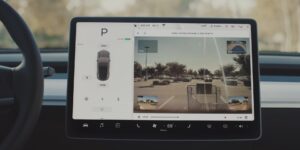

Are you experiencing issues with your Tesla live camera not working? You’re not alone. Many Tesla owners have reported similar problems, and the frustration is understandable: the Live Camera feature is designed to give you real-time awareness of your vehicle’s surroundings, yet when it fails to load, freezes, or throws an error, it can feel like you’ve lost one of the most practical security tools in the Tesla ecosystem.
Before diving into fixes, it helps to frame the problem the way an experienced technician or power user would. “Tesla Live Camera not working” is not a single fault; it’s a symptom that can be triggered by several different layers of the system: vehicle security settings (especially Sentry Mode), your Tesla app and phone OS behavior, account permissions, data connectivity (on both the car side and the phone side), and software version compatibility. In other words, the same “Live Camera won’t load” outcome can come from multiple causes, which is why troubleshooting works best when you follow a structured checklist.
Table of Contents
In this article, we’ll discuss common reasons for this issue and what can be done to troubleshoot it. After reading, you should have a clearer understanding of the situation and potential solutions to try out. The goal is not just to “make it work once,” but to help you pinpoint which part of the chain is breaking so you can restore reliable, repeatable access to the Live Camera feed.
Also note an important boundary: Live Camera performance is heavily dependent on real-world network conditions. Even when everything is configured correctly, weak coverage, signal interference, and restrictive phone settings can make the feature appear unreliable. The good news is that most cases are solvable without service visits, as long as you troubleshoot systematically.
Common Issues with Tesla Live Camera
The Live Camera feature typically fails for reasons that fit into a few recurring categories. Below are the most common culprits, why they matter, and how they usually present in real-world use.
Sentry Mode Issues
One possible issue with the Tesla Live Camera feature is related to Sentry Mode. If Sentry Mode isn’t functioning correctly or is disabled, you may experience problems with the Live Camera. In many configurations, Live Camera access is tied to Sentry Mode status and related security permissions, so a change in Sentry settings can directly impact camera availability in the app.
Here are the most common Sentry Mode-related scenarios that cause confusion:
1) Sentry Mode is off (globally or at your current location). Tesla allows Sentry Mode behavior to vary by location (for example, Home, Work, Favorites). If Sentry is configured to stay off at Home and your car is currently parked at Home, you may find Live Camera unavailable even though it worked earlier in a different location. This can look like a “bug” when it is actually expected behavior based on location rules.
2) Sentry is on, but the system is not fully “awake.” Depending on vehicle state, connectivity conditions, and app behavior, you may see delayed responses. The Live Camera feed is a streaming function; if the vehicle is slow to wake or reconnect, the app may time out before the stream initializes.
3) Conflicts with other vehicle modes. Tesla explicitly notes that Dog Mode and Sentry Mode cannot be active simultaneously. If you are using Dog Mode (or have recently used it), Sentry-related camera access may not behave the way you expect until you switch modes appropriately and allow the system to stabilize.
4) Security settings changed after an update. Firmware updates can occasionally reset or adjust certain toggles, especially if Tesla introduces new permissions or modifies how a feature is exposed in the interface. If Live Camera stopped working immediately after a vehicle update, do not assume hardware failure; first confirm that Sentry and security toggles still match your previous configuration.
The practical takeaway: if Live Camera is not working, the first place to verify is the vehicle’s security logic, because the system will intentionally restrict camera access if it believes the conditions for secure monitoring are not met.
Network and Connectivity Issues
Another factor that might cause difficulties with the live camera is connectivity. Ensure that your Tesla has strong Wi-Fi or cellular signal to establish a stable connection. Weak signals can cause the live camera to malfunction or not load at all. Live Camera is essentially a live video stream; it is far more sensitive to latency, bandwidth drops, and unstable routing than simple app commands like “unlock” or “turn on climate.”
When diagnosing connectivity, remember that you are dealing with two separate network environments:
1) The car’s connection to Tesla’s network. This can be through cellular data or Wi‑Fi. If the car is in an underground garage, behind thick concrete, or in an area with poor coverage, the car may have enough signal to send small status pings but not enough to sustain a live stream.
2) Your phone’s connection to the internet. Your phone also needs reliable data. If you are on weak Wi‑Fi, congested mobile data, or a network that blocks certain streaming behaviors, the app may fail to load the feed even though the car itself is fine.
Common network-specific triggers include:
- Weak LTE/5G signal at the vehicle location (garages, remote lots, dense urban canyons).
- Weak or unstable Wi‑Fi where the car is parked (poor router placement, weak mesh coverage, interference).
- Captive portals or restricted Wi‑Fi (hotel/guest networks that require browser sign-in can break background streaming).
- VPNs, DNS filters, or “privacy” apps on your phone that interfere with streaming connections.
- Carrier throttling or congestion where small app requests succeed but live streaming fails.
As a rule: if Live Camera fails consistently in one parking location but works in another, the problem is usually signal quality; not your camera hardware.
Smartphone Compatibility
Smartphone compatibility could also be a reason for live camera issues. Make sure you’re using a compatible device, such as an updated Android or iOS smartphone. Some users have reported problems specific to certain phone models, like the Pixel 5 and Pixel 6 Pro.
Compatibility problems tend to cluster around a few factors:
1) OS-level restrictions. Modern Android and iOS versions include aggressive background restrictions, network optimization, and permission systems. If the Tesla app is prevented from running in the background, denied cellular data, or restricted by battery optimization settings, Live Camera may fail to initialize or may drop unexpectedly.
2) App version drift. Some devices update apps automatically; others do not. If your phone is running an older Tesla app build, you can experience features missing, unstable streams, or compatibility errors; especially after Tesla pushes server-side changes or updates vehicle firmware expectations.
3) Device-specific networking behavior. Certain phone models manage Wi‑Fi handoff, mobile data switching, or “private DNS” differently. That’s why you sometimes see clusters of reports around a specific device family. This does not mean the phone is “bad”; it usually means a configuration or OS-level behavior is interacting poorly with the streaming implementation at that time.
If you suspect the issue is device-specific, a quick isolating test is to try Live Camera from another phone logged into the same Tesla account (or from a trusted second device). If it works elsewhere, you’ve narrowed the problem to your phone/app configuration rather than the vehicle.
Garage and Environmental Factors
Environmental factors, like your garage setup, can also impact the Live Camera feature. If the car is parked in an enclosed or underground garage, the Wi-Fi or cellular signal might be weak, affecting the live camera’s performance.
This is one of the most underestimated causes. Tesla Live Camera is highly sensitive to RF conditions because it needs stable bandwidth. Enclosed garages create “dead zones” and signal reflection issues, and underground lots can block cellular signal almost completely. Even in above-ground garages, reinforced concrete and metal infrastructure can reduce signal quality enough that streaming becomes unreliable.
Practical fixes often include:
- Parking closer to where Wi‑Fi is strongest (near the garage door, closer to a mesh node).
- Adding a Wi‑Fi extender or mesh access point to the garage.
- Testing Live Camera outdoors to confirm it works when signal is clean.
- Improving phone data stability by switching from weak Wi‑Fi to cellular (or vice versa) when viewing the feed.
If Live Camera works reliably when the car is parked outside but fails in a particular garage, treat the garage as the root cause and optimize connectivity rather than chasing app settings endlessly.
Software Version and Updates
Lastly, ensure that your Tesla is running the latest software version, as well as having the most recent Tesla app installed on your smartphone. Outdated software or app versions may create issues with the live camera, such as the feature being removed completely, as reported in a Tesla Motors Club discussion.
Software alignment is critical because Live Camera is a cross-platform feature: the vehicle firmware, Tesla’s backend services, and your phone app must all “speak the same language.” If one component lags behind, you can see failures that look random; especially after Tesla pushes changes gradually across regions or vehicles.
It is also worth recognizing the difference between two common failure types:
1) Feature disappears or is greyed out. This often suggests a version/permission mismatch, a subscription requirement not met, or a settings toggle not enabled.
2) Feature is present but fails to load. This is more commonly network instability, app caching issues, phone restrictions, or temporary backend service problems.
Either way, keeping both the vehicle and app updated is the baseline requirement before deeper diagnostics. Updating should not be treated as a “last resort”; it should be step one.
Troubleshooting and Solutions
Effective troubleshooting works best when you move from the simplest, fastest checks to the more involved steps. The goal is to eliminate the most likely causes first; app state, settings, connectivity, software alignment; before you assume a hardware problem exists. Below are the most reliable fixes and what they address.
Restarting the Tesla App
If your Tesla live camera isn’t working, your first step should be to restart the Tesla app. Close the app completely and reopen it, then try accessing the live camera feature again.
Why this helps: the app can get stuck in a partially authenticated state, a cached connection attempt, or a stale session. Live Camera streaming is more demanding than basic commands, and a stuck session can prevent the feed from initializing properly.
Expert tip: after restarting the app, wait a few seconds for the vehicle status to fully refresh (battery %, location, climate status). If the app hasn’t fully reconnected to the vehicle, Live Camera may time out.
Checking Software Version and Updating
Ensure that both your Tesla vehicle and the Tesla app on your smartphone are up-to-date with the latest software versions. To check your vehicle’s software version, navigate to the ‘Software’ tab within its touchscreen. For updating the Tesla app, visit your smartphone’s app store and look for any available updates.
To make this step more reliable, consider the following best practices:
- Update the Tesla app first (phone updates are usually faster and remove app-side bugs).
- Then verify vehicle software (if an update is pending, install it when convenient).
- After updates, reboot once (restarting app/phone can clear residual cache issues).
If you’re troubleshooting after a recent update, allow some time for stabilization. Immediately after installing new firmware, the vehicle may run background processes that temporarily affect connectivity or responsiveness.
Adjusting Camera Settings
Make sure your Tesla live camera settings are configured correctly. Go to the ‘Security’ settings within the vehicle’s touchscreen to enable Sentry Mode and any other relevant camera features. Additionally, ensure your vehicle is parked in a well-lit area with a strong connection to your smartphone.
From an expert standpoint, this step is about confirming the feature is allowed to operate at all. Security settings can include multiple toggles that influence camera behavior. Ensure Sentry Mode is enabled where you need it, and confirm the car is not restricted by location-based exclusions (for example, Sentry disabled at Home).
Also consider the practical environment: lighting affects what you can see, even when the stream works. A poorly lit garage may make the feed look “black” and lead owners to believe the camera is broken. If the stream loads but visuals are unclear, test outdoors or under brighter lighting to separate visibility from connectivity.
‘Refresh’ Feature Usage
When experiencing issues with the Tesla live camera, use the ‘Refresh’ feature in the app. This will attempt to re-establish a connection between your smartphone and your vehicle’s live camera feed.
In practice, “Refresh” is useful when the app and vehicle have drifted out of sync; common after switching networks, moving between Wi‑Fi and cellular, or when the vehicle has been asleep. Use Refresh as a controlled retry rather than repeatedly tapping Live Camera, which can sometimes create repeated failed attempts that take longer to clear.
If Refresh doesn’t help, switch networks (for example, turn Wi‑Fi off on your phone and try cellular, or connect to a stronger Wi‑Fi). This isolates whether the failure is caused by your current network environment.
Ensuring Premium Connectivity
Premium Connectivity is required for the Tesla live camera feature. Make sure you are subscribed to this service, as it will enable additional features, such as live streaming and remote access to your vehicle’s cameras.
This requirement is one of the most common “it worked before” misunderstandings. Premium Connectivity status can change due to subscription expiration, account updates, or changes in how Tesla packages features. If Live Camera fails and you cannot identify a connectivity or settings issue, verify Premium Connectivity as a priority.
Also note that even with Premium Connectivity, real-world network conditions still apply. Premium Connectivity enables the feature, but it does not guarantee that a weak garage signal will support streaming.
Verifying Phone Key Functionality
Ensure your smartphone is functioning as a valid phone key with your Tesla vehicle. Navigate to the ‘Locks’ settings within the vehicle’s touchscreen to double-check your smartphone is authorized and connected as a phone key. If necessary, remove and re-add your smartphone to establish a secure connection.
Phone Key issues can sometimes cascade into other app feature reliability problems, particularly when authentication and authorization flows are involved. If your Phone Key is intermittently disconnecting or failing to authenticate, treat that as a broader “account-device pairing” signal that may affect Live Camera as well.
For best results, after re-adding your phone key, make sure your phone’s Bluetooth is on and that the Tesla app has the necessary permissions. On some devices, Bluetooth or location permissions can be restricted in ways that break key functions in the background.
Additional Security Features
Your Tesla vehicle offers other security features beyond the live camera to help ensure the safety of your car. In this section, we will discuss Sentry Mode, honking horn, and flashing lights as additional security measures.
It’s worth emphasizing a practical point: Live Camera is an excellent awareness tool, but it works best as part of a layered security approach. When Live Camera is temporarily unavailable, these additional features still provide deterrence and event recording, helping reduce risk while you troubleshoot.
Sentry Mode
Sentry Mode is designed to add another layer of protection to your vehicle. When activated, it utilizes your car’s cameras to monitor its surroundings and detect potential threats. You can access Sentry Mode from the Tesla app by tapping ‘Security,’ followed by ‘Sentry Mode’ and then ‘View live camera’ (Tesla Support) . Keep in mind that Dog Mode and Sentry Mode cannot be active at the same time.
From an expert user standpoint, Sentry Mode reliability depends on two things: proper configuration and consistent storage behavior. While this article focuses on Live Camera, remember that Sentry also generates recordings and alerts. If those recordings are not being saved properly, that can signal broader issues with storage media or security settings. If Live Camera is failing and Sentry recordings are also inconsistent, the problem may be bigger than streaming alone.
If your primary goal is vehicle protection (not just viewing), prioritize confirming that Sentry Mode is active and functioning even if Live Camera streaming is temporarily unreliable.
Honking Horn
Your Tesla’s horn can also provide added security. In the event of a potential threat or break-in, your car’s horn will honk to draw attention and potentially scare away an intruder. To activate this feature, access the car settings menu and enable the ‘Alarm’ option. The horn will then automatically honk when the car detects an unauthorized entry.
Horn-based deterrence is simple but effective because it escalates an incident from private to public. Even in busy environments, sudden noise can attract attention, disrupt tampering behavior, and reduce the amount of time an intruder has to work.
Flashing Lights
Flashing lights serve as another measure to deter potential intruders. When your car’s alarm is triggered, the exterior lights will flash, adding visibility and alerting those nearby. Like the honking horn, this feature can be activated through the car settings menu under the ‘Alarm’ option.
Flashing lights are particularly useful in low-light conditions and parking structures where visibility is limited. They can also help you locate your vehicle quickly if you receive a security alert and need to visually identify the correct car in a crowded lot.
These additional security features, along with the live camera, work in tandem to help protect your Tesla and give you peace of mind.
Conclusion
In summary, if you’re experiencing issues with your Tesla live camera feature, it could be due to a bug or compatibility issue with your device. Make sure your Tesla app is updated, and check for any known issues with your specific device model.
If the problem persists, consider contacting Tesla support for further assistance. Remember, Tesla is continually working on improving its software, and your live camera feature may start working again after a future update.
As a final expert note: treat Live Camera troubleshooting like a layered diagnostic process. Start with the simple steps (app restart, refresh, software updates), then verify requirements (Sentry Mode, Premium Connectivity, phone key authorization), and only then assume there’s a deeper compatibility or service-level issue. Most Live Camera problems are resolved by correcting configuration, improving connectivity, or aligning software versions. When they are not, Tesla support is the right escalation path; especially if the issue persists across multiple phones and multiple network environments.
With the right setup, Tesla Live Camera is a powerful security and awareness tool. Once stabilized, it can provide the confidence of real-time visibility; whether you’re checking on your vehicle from across a parking lot or across the country.