
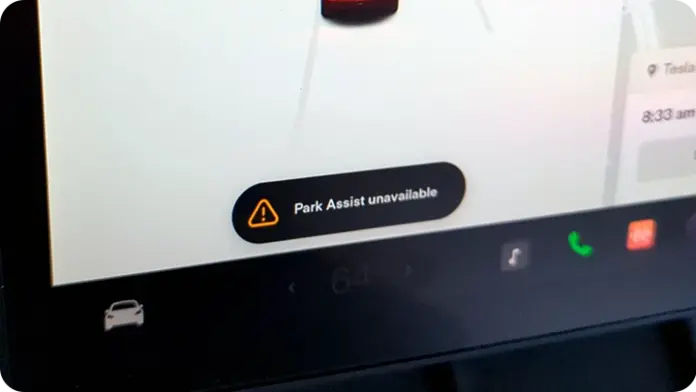
Over the last few months, I’ve been tracking a pattern that keeps surfacing in owner reports and real-world driving: Tesla Park Assist suddenly becomes unavailable; often without any obvious physical damage to the vehicle. If you use Park Assist regularly (especially in tight garages, crowded lots, or urban street parking), losing it can feel like you’ve lost a layer of situational awareness you’ve come to depend on.
What makes this issue especially frustrating is that it doesn’t always behave like a traditional “broken sensor” problem. Many owners describe the same experience: the car drove normally, cameras seemed fine, and then Park Assist vanished; sometimes immediately after a software update, other times after a reboot or a drive cycle. And because Tesla vehicles are software-centric, the line between a feature being disabled by logic and being disabled by failure can be hard to see from the driver’s seat.
After reviewing the most consistent reports, one update version gets mentioned repeatedly: 2023.6.9. Several drivers say that after installing it, they expected to see the improved Park Assist behavior; but instead were greeted with an error message or a “Park Assist Unavailable” alert. In short: some vehicles didn’t simply get a new feature; they got a feature that didn’t initialize correctly, didn’t calibrate, or didn’t activate under conditions where it normally would.
This article is designed to help you troubleshoot like an expert. That means we’ll do more than repeat generic advice like “reboot the screen.” We’ll cover what Park Assist is actually doing behind the scenes, why it may shut itself off, what the most common triggers are (software, sensor/camera occlusion, environment, and genuine hardware faults), and the step-by-step troubleshooting path that tends to solve the issue with the least wasted time.
Just as importantly, we’ll keep expectations realistic. Park Assist is helpful, but it’s not magic; it is a driver-assistance feature that depends heavily on clean inputs, consistent calibration, and predictable environmental conditions. When any of those requirements are not met, Tesla’s system will often “choose safety” and disable the feature; sometimes before you even notice any other symptoms.
What is Tesla Park Assist?
Tesla Park Assist is a driver-assistance feature designed to make parking simpler and safer by providing distance awareness around your vehicle. Depending on the model year and configuration, Park Assist may use a combination of sensors and cameras to detect obstacles, estimate distances, and give you clear feedback while maneuvering at low speeds.
At the user level, Park Assist is straightforward: it warns you when you’re getting close to something. But under the hood, it’s doing something far more complex. The system has to identify what is “obstacle” versus “background,” estimate how close the object is, and update that estimate continuously as the vehicle moves. That’s why Park Assist is typically most active during low-speed movement, reverse maneuvers, and close-quarters positioning.
When Park Assist is working properly, Tesla can help you judge whether a space is workable for your vehicle. Then it provides visual cues on the screen and audible cues (beeps and tones) as you approach objects. The key advantage is not that the system “parks the car for you,” but that it reduces the guesswork; especially when the obstacles are below the window line or outside your mirrors.
In tight parking spaces or crowded areas, Park Assist can reduce low-speed bumps and scrapes by helping you maneuver with more precision. However, the most professional way to think about it is this: Park Assist is a decision-support tool, not a substitute for your own awareness. Even when it’s operating perfectly, you still need to monitor your surroundings and use your judgment.
It’s worth mentioning that Tesla explicitly warns that Park Assist has limitations. In practical terms, those limitations are not “fine print”; they explain most of the cases where Park Assist either performs poorly or disables itself. The system may fail to detect certain object types (thin poles, protruding items, irregular shapes), may not respond reliably to moving objects, and can be confused by objects that are extremely close, extremely far, or positioned in awkward angles relative to the sensing hardware. The safest mindset is to treat Park Assist as a helpful second opinion, not the final authority.
To understand why the “Park Assist Unavailable” message can appear after an update like 2023.6.9, it helps to remember what Tesla is really doing: it’s fusing multiple inputs, applying software logic, and requiring a stable confidence level before it presents the feature to the driver. If confidence drops; because of occlusion, calibration mismatch, or a software regression; the system can disable itself.
A quick note on Tesla’s Park Assist evolution (and why it matters)
Depending on your Tesla’s build date and hardware, your Park Assist experience may be shaped by one of two approaches:
- Ultrasonic sensor-based Park Assist (commonly called USS): traditional parking sensors in bumpers that estimate distance via sound waves.
- Vision-based Park Assist (often described as Tesla Vision Park Assist): distance estimation derived from camera views and software interpretation.
Why does this matter? Because when Park Assist becomes unavailable, the root cause can depend on which system your car uses. USS systems typically fail due to sensor blockage, sensor damage, or wiring issues. Vision systems can become unavailable due to camera occlusion, calibration problems, software bugs, or environmental conditions (lighting, rain, glare) that reduce confidence. And yes; software updates can affect both, but vision-based features tend to be more sensitive to software behavior because more of the “work” happens in code.
Common Reasons for Tesla Park Assist Unavailable
When Park Assist disappears, it’s tempting to assume something is physically broken. In reality, the most common causes fall into three broad categories: sensor/camera obstruction, software issues, and hardware malfunction. The fastest way to solve this is to identify which category you’re in, then apply targeted troubleshooting instead of random resets.
Below, I’ll break down each category the way a technician or diagnostic-minded owner would approach it: what typically triggers the condition, what the symptoms look like, and what you should do first.
Sensor Obstruction
One of the most common reasons Tesla Park Assist becomes unavailable is simple: the system’s “eyes” are blocked. For vehicles equipped with bumper sensors, that can be dirt, mud, road salt, ice, snow, wax residue, or heavy water film covering the sensors. For vision-based setups, the issue can be dirty camera lenses, condensation, or even heavy glare.
Here’s the professional explanation: Park Assist requires reliable distance estimation. If the input is degraded enough that the system can’t produce a confident result, Tesla will often disable the feature rather than risk presenting inaccurate distance data. That’s why “unavailable” can show up even when nothing is “broken.” It can be the system refusing to operate with compromised input quality.
My first recommendation is always the simplest and cheapest: clean the relevant sensing surfaces. If your vehicle has bumper sensors, clean the sensor faces. If your vehicle relies heavily on cameras, clean the camera lenses and ensure there’s no film or fogging. In cold climates, remove ice carefully; do not scrape aggressively across sensor surfaces or camera housings.
Also consider the environment. Heavy rain, dense fog, direct sun glare, or nighttime parking in poor lighting can reduce vision confidence. That doesn’t mean Tesla “can’t do it,” but it does mean the system may temporarily choose not to present Park Assist.
Software Issues
Software is the second major category; and it’s the one that has been emphasized in many owner reports related to version 2023.6.9. A software update can affect Park Assist in multiple ways: enabling a new implementation, changing calibration expectations, modifying confidence thresholds, or introducing a bug that prevents initialization.
When software is the trigger, Park Assist may be unavailable immediately after the update, may become intermittent (works sometimes, fails other times), or may fail until the car completes a drive cycle that allows background systems to “settle” and calibrate. I’ve also seen cases where a feature appears unavailable until after the vehicle has been locked, slept, and reawakened; a clue that a restart of certain background services was needed.
In software-related cases, a system reboot or a power reset can resolve the issue because it clears transient faults and forces services to reload cleanly. If the issue persists, the best next step is to check for additional updates or contact Tesla support to see whether your vehicle is flagged for a known issue.
One practical tip from experience: if your Park Assist became unavailable right after an update, avoid doing ten different things at once. Make one change, test, and observe. That helps you isolate what actually fixed it; valuable information if the issue returns later or if you need to report a clear pattern to Tesla.
Hardware Malfunction
The third category is true hardware malfunction. This includes problems with the physical components that support Park Assist: sensors, wiring, connectors, camera assemblies, and related control modules. Hardware faults are less common than obstruction and software issues, but they do occur; especially after minor impacts, bumper repairs, water intrusion, or long-term exposure to harsh climates.
In a genuine hardware failure scenario, Park Assist may remain unavailable across reboots, across weather conditions, and across multiple days. You may also see related symptoms: persistent warnings, other camera-based features behaving oddly, or repeated alerts that return immediately after a reset.
If the problem cannot be resolved through cleaning and rebooting; and especially if the alert is persistent; then a hardware issue becomes more likely. At that stage, the professional recommendation is to involve Tesla support or schedule service so the vehicle can be scanned for fault codes and tested properly.
Additional triggers that owners often overlook (but matter)
Even though the three categories above cover most cases, a few “secondary” factors can push Park Assist into an unavailable state. These factors don’t replace the main causes; they tend to amplify them:
- Aftermarket modifications (wraps, PPF, bumper repaint): thick layers or poor fitment can affect sensor performance or camera cleanliness.
- Temporary system load: right after an update, some systems may run background checks; features can be inconsistent until the vehicle completes normal driving.
- Low-voltage issues: a weak 12V system can cause odd behavior in vehicle electronics, including temporary feature lockouts.
- Calibration drift: after body work, windshield replacement, or camera-related service, vision systems may require calibration driving before all features behave normally.
If any of these conditions apply to your vehicle, factor them into your diagnosis. A clean, stock vehicle with no recent service is more likely dealing with software or environmental conditions. A vehicle with recent repairs or modifications deserves a closer inspection for calibration or hardware-related causes.
How to Fix Tesla Park Assist Not Working
When I run into a “Tesla Park Assist Unavailable” message, I follow a structured troubleshooting routine. The goal is to solve it efficiently while minimizing unnecessary resets and avoiding guesswork. Below is a step-by-step process you can use whether you’re a casual owner or someone who likes a more methodical approach.
Important safety note: any time you test Park Assist, do it in a controlled environment. Don’t rely on the system to “prove” itself in a tight spot with expensive obstacles. Give yourself space, move slowly, and treat the feature as an aid; not as a guarantee.
Inspect Sensors
Start with the physical inspection. Even if you’re convinced it’s “just software,” it’s still wise to verify the basics first because obstruction is a top cause and the easiest to correct.
Carefully inspect the parking sensors (if equipped) and the camera areas. Look for:
- dirt and mud film
- road salt crust (common in winter regions)
- snow/ice buildup
- water droplets that form a dense layer
- wax or cleaning product residue
- physical damage (cracks, scuffs, impact marks)
If you find contamination, clean gently. Use a microfiber cloth and safe automotive cleaner. Avoid aggressive scrubbing on camera lenses. If you’re in freezing conditions, avoid pouring hot water on frozen sensor areas; rapid temperature changes can stress materials and create fogging or refreezing.
After cleaning, drive a short distance and test Park Assist again. Some vehicles need a brief movement period before the system re-evaluates and returns functionality.
Restart the System
If cleaning doesn’t restore the feature, your next move should be a controlled reboot. This is not superstition; Tesla vehicles rely on multiple software services, and a reboot can clear a stuck process or temporary fault state.
To restart the system, press and hold both scroll wheel buttons on the steering wheel until the screen restarts. This is often enough to resolve a short-lived software glitch that is blocking Park Assist. For additional owner discussion and version-specific behavior (including references to the 2023.6.9 update), you can review this Tesla Motors Club thread.
After the reboot, wait for the car’s systems to stabilize. Then test Park Assist in a normal low-speed parking scenario. If it comes back temporarily and then disappears again, that pattern is useful: it suggests either software instability or a condition that re-triggers the disablement (like recurring occlusion, calibration issues, or an intermittent hardware connection).
If you want to be extra thorough, you can also do a “clean” vehicle state reset: park safely, close doors, and let the vehicle sit for a bit so it can sleep. Then wake it and test again. Some services reinitialize more completely after a sleep cycle than after a quick reboot.
Check for Software Updates
Next, confirm whether your Tesla is on the most recent software available for your vehicle. Tesla regularly issues incremental patches that resolve known issues, including problems introduced by earlier releases.
To check for updates, go to the “Software” menu on your Tesla’s touchscreen and tap “Check for updates.” If a new version is available, follow the on-screen instructions to install it. When installing, make sure your vehicle has adequate battery level, stable connectivity (Wi‑Fi helps), and enough time to complete the installation without interruption.
As a best practice, I recommend avoiding “update stacking” confusion. If Park Assist became unavailable on a specific version, note that version number, note when the issue began, and note whether it is consistent. That information is far more helpful than “it stopped working sometime last week.”
Remember: keeping your Tesla’s software current is not just about new features. Updates often include bug fixes, sensor processing improvements, and changes to how driver-assistance systems validate input quality. Those behind-the-scenes changes can directly affect whether Park Assist operates normally.
Power-cycle the vehicle (when a reboot isn’t enough)
If a screen reboot doesn’t restore Park Assist, the next step is a deeper reset: a full power cycle. A reboot restarts the infotainment display; a power cycle can reset more vehicle subsystems. While the exact method can vary slightly by model and software revision, the principle is the same; shut down cleanly, wait, and restart.
In general, this means parking safely, using the vehicle’s power-off option (if present in your controls), and waiting without touching pedals or opening doors for a few minutes so the car truly powers down. Then restart and re-test. This step often resolves feature lockouts caused by software services that didn’t reload correctly after an update.
Confirm the conditions where Park Assist should activate
Owners sometimes interpret “unavailable” as “permanently broken,” when it may actually mean “not currently supported under these conditions.” To test properly, make sure you’re evaluating Park Assist under the scenarios where it typically engages:
- low-speed movement in a parking environment
- reverse maneuvers toward visible obstacles
- clear lighting and visibility (especially important for vision-based Park Assist)
- clean cameras and bumper areas
If your test environment is a blank wall with harsh glare, heavy rain, or darkness with minimal lighting, vision-based systems may simply refuse to provide distance visualization. The more controlled your test, the more meaningful your result.
When to stop troubleshooting and involve Tesla support
DIY troubleshooting is valuable, but there is a point where repeating resets becomes counterproductive. If Park Assist remains unavailable after:
- cleaning sensor and camera areas
- rebooting the system
- performing a deeper power cycle
- confirming you are on current software (or installing the next available update)
…then it’s time to escalate. At that stage, the system may be logging fault codes, the vehicle may have a calibration inconsistency, or there may be a genuine hardware issue. Tesla support or a service center can read diagnostic logs and verify whether a component is failing or a software condition is blocking activation.
The most effective way to communicate with support is to be precise: report the exact message you see, the software version, whether the issue began immediately after an update, and whether it is constant or intermittent. The more structured your report, the faster the triage usually goes.

Conclusion
Based on what I’ve observed, Tesla’s Park Assist can occasionally become unavailable; especially in the window right after certain updates. And yes, version-specific behavior has been reported by multiple owners, including scenarios where the system returns an error message instead of functioning normally. In many cases, the root cause is not catastrophic; it’s a confidence issue caused by occlusion, a temporary software glitch, or a post-update initialization quirk.
Tesla’s Vision Park Assist is intended to help drivers park more safely using camera-based interpretation, but it’s still evolving. That’s not a criticism; it’s simply the truth of advanced driver-assistance systems: they improve over time through updates, data, and refined algorithms. The downside is that changes can occasionally introduce short-term instability for a subset of vehicles.
From an expert perspective, the most productive owner strategy is to stay calm and be systematic. Start with the physical basics, apply a controlled reboot, confirm software status, and test under reasonable conditions. If the feature remains unavailable, escalate with good documentation rather than repeating resets endlessly.
Most importantly, remember the role of Park Assist: it’s a driver aid, not a replacement for attention. Whether it’s temporarily unavailable or operating normally, your best safety tool is still your awareness; mirrors, cameras, careful speed control, and disciplined judgment. Tesla will likely continue refining the feature in upcoming releases, and for many owners, the issue resolves with subsequent patches. Until then, stay observant, keep your vehicle clean and updated, and treat the system as helpful guidance; not an infallible guarantee.

