
Dealing with a Tesla key card that won’t unlock the car; or refuses to authorize driving; can feel disproportionately stressful, mainly because it usually happens at the worst possible time: when you’re juggling groceries, standing in the rain, running late to a meeting, or trying to get home after a long day. The good news is that the vast majority of “key card not working” situations are solvable with calm, methodical troubleshooting. In practice, the issue typically comes down to one of four categories: positioning (the most common), card condition (wear, damage, or bending), signal disruption (interference from other objects), or software/authorization (the card is fine, but the car isn’t recognizing it properly).
Before you assume the card has failed, it helps to understand what you’re using. The Tesla key card is a passive NFC (near-field communication) credential; similar in concept to a hotel key card or contactless payment card. Because it’s passive, it has no battery to replace. Instead, it relies on being held very close to the car’s NFC reader so the reader can energize the chip and read the encrypted credential. That also means technique matters: the card must be placed at the right spot, held flat, and given a moment to register. If you’re slightly off-target, holding it at an angle, or moving it too quickly, the car may behave as if nothing is there.
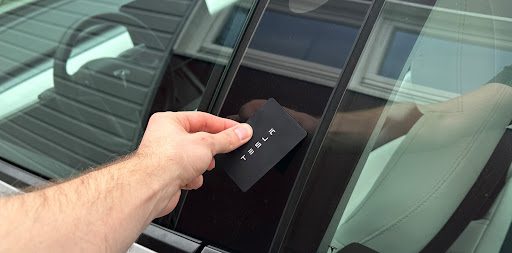
Start with the simplest high-impact checks. Confirm you’re positioning the key card correctly on the pillar of the car door (typically the B-pillar, between the front and rear doors), because placement is crucial for consistent operation. If your technique is solid and the card still won’t respond, the next likely culprit is software authorization; something that often improves after a “remove and reload” (removing the card from the vehicle’s key list and pairing it again). In other cases, a quick reboot of the car’s infotainment system clears temporary glitches that prevent the card from being recognized.
Below is a detailed, expert-level guide to the most common causes, how to test each one, and how to restore reliable key-card access. Even if you already know the basics, you’ll benefit from the small procedural details that separate “I tried it three times” from “it works every time.”
Common Reasons for Tesla Key Card Not Working
When a Tesla key card stops working, it’s tempting to label it as “dead.” In reality, truly failed cards are less common than inconsistent reads caused by handling, interference, or configuration. A professional troubleshooting approach looks for patterns:
- Does the card fail at the door, inside the cabin, or both? Door-reader issues can be placement or interference; console authorization issues can be placement or software authorization.
- Is the problem consistent or intermittent? Intermittent failures often point to technique or interference rather than a broken chip.
- Do other keys (phone key, another card, or fob) work normally? If other keys work, the vehicle’s system is likely fine and the issue is card-specific.
With that mindset, let’s break down the most frequent causes and what you can do about them.
Damage and Scratching
One of the most overlooked reasons a Tesla key card may stop responding is simple physical wear. Even though the card looks like a sturdy piece of plastic, its usability depends on an embedded NFC antenna and chip. If the card is cracked, deeply scratched, bent, delaminated, or exposed to harsh conditions long enough, the internal antenna can become unreliable. Because NFC operates at extremely short range, even modest damage can reduce read consistency; especially if you are already holding the card slightly off the best read position.
In real-world terms, damage usually happens in predictable ways: the card lives loose in a pocket next to keys, gets wedged in a tight wallet slot, sits in a back pocket and gets bent when you sit down, or rubs against gritty debris like sand. Some wallets also contain rigid metal frames or RFID-blocking layers that can create additional stress or interfere with reading. If you notice that the card works only when pressed hard or only in one orientation, that’s a classic clue that internal damage is affecting the antenna path.
The key card relies on near-field communication (NFC) technology, so any damage to the card itself can impact its functionality. To prevent this:
- Keep the key card in a protective case
- Avoid placing it in your pocket with other keys or sharp objects
- Handle the card with care to avoid bending or scratching
Additional expert tips that help preserve NFC reliability over the long term include keeping the card in a consistent, low-friction location (for example, a dedicated sleeve in your wallet), cleaning it gently if it gets gritty, and avoiding the temptation to punch holes or attach it directly to keyrings. If you suspect damage, the fastest diagnostic is to try a second Tesla key card (if you have one). If the second card works immediately at the same spot, you’ve essentially isolated the problem to the original card’s condition.
If you only have one card, test for “range shrinkage.” Hold the card at the correct reader location and slowly move it a few millimeters away. A healthy card will read only when very close, but it should read consistently when placed correctly. A compromised card may require unusually firm pressure or repeated attempts. If consistent reads are becoming harder over time, it’s usually smarter to replace the card proactively rather than wait until it fails completely at an inconvenient moment.
Radio-Frequency Interference
Radio-frequency interference is another frequent cause, and it’s often misunderstood. Because NFC is a short-range communication method, people assume interference can’t matter. In practice, interference doesn’t need to “overpower” NFC to cause trouble; it can simply distort the conditions enough that the reader fails to get a clean, quick read. The most common issue isn’t actually radio noise from far away; it’s nearby objects that absorb, block, or detune the field between the card and the reader.
This is why a key card that works perfectly on its own may suddenly fail when it’s held inside a wallet, stacked with other contactless cards, or placed against a phone with MagSafe magnets. Metal plates (often used with magnetic phone mounts), RFID-blocking wallet layers, and some purse clasps can also disrupt the coupling between the NFC reader and the card. Even another NFC-enabled card pressed directly against your Tesla card can create unpredictable results because the reader may attempt to energize multiple antennas at once, leading to a weak or inconsistent response.
Another possible cause is radio-frequency interference, which can occur when the key card is placed near other devices emitting radio waves. In such cases, the NFC chip inside the key card might fail to connect with the car’s receiver. To reduce this interference:
- Keep the key card separate from other electronic devices, such as smartphones or tablets
- Avoid using the key card close to high-intensity electromagnetic fields, such as power lines or transformers
- Store the key card far away from magnets or other items that can create magnetic interference
In day-to-day use, the most effective workaround is simple: present the card by itself. Take it out of the wallet, keep it away from your phone, and place it flat against the reader location for a full second or two. If it works reliably once removed from other items, you’ve confirmed interference rather than card failure.
Also pay attention to “habit interference.” Many people naturally hold the card while also holding their phone, especially if they’re reading instructions or using the Tesla app at the same time. If your phone has a magnetic case, pop socket magnet, or a metal plate for a car mount, that combination can be particularly disruptive. A small change; using your free hand for the card, or moving the phone a few inches away; can make the difference between repeated failure and an immediate unlock.
If you operate in areas with strong electromagnetic activity (near industrial equipment, large transformers, or similar infrastructure), remember that the environment can also play a role. It’s not that the card “breaks” there; it’s that the read window becomes less forgiving. In those scenarios, precise placement and removing the card from wallets/cases becomes even more important.
Temperature Factors
Extreme temperatures are a practical reliability issue for almost any electronic credential, including passive NFC cards. While the card has no battery, it still contains materials (plastic layers, adhesives, and the antenna assembly) that can behave differently under heat or cold. Excessive heat can soften or warp the plastic; repeated heat cycles can weaken lamination over time. Intense cold can make plastics more brittle and reduce flexibility, increasing the chance of cracking when the card is flexed in a wallet or pocket.
Temperature issues tend to show up indirectly: the card may read inconsistently after being left in a hot car, on a dashboard, or in direct sun at the beach. Or the card may have been stored somewhere cold enough that condensation forms when you bring it into a warmer environment; moisture isn’t usually catastrophic, but it can contribute to wear, grime accumulation, and eventual degradation. In winter climates, another subtle problem is that thick gloves can make it harder to hold the card flat and steady, leading to “missed reads” that look like card failure but are actually technique issues under cold conditions.
Extreme temperatures can also affect the performance of your Tesla key card. Excessive heat or cold can cause the internal components of the key card to malfunction. To mitigate this issue:
- Avoid exposing the key card to direct sunlight or high temperatures for extended periods
- Store the key card in a cool and dry place away from heat sources
- In extreme cold, keep the key card inside your pocket or glove compartment to protect it from freezing temperatures
One additional best practice is to avoid storing the card in places where it will experience repeated thermal stress; like a wallet left in a car year-round. If you must keep a backup card in the vehicle, store it somewhere shaded and stable, and consider rotating it periodically with the card you carry daily. This reduces the chance that your backup card becomes the one that fails when you need it most.
Finally, remember that temperature can affect the vehicle’s behavior too. In very cold conditions, the car may take slightly longer to “wake,” and the reader may not respond instantly on the first tap. That doesn’t mean the card is defective; just give it a deliberate, steady hold at the reader point and allow the vehicle a moment to respond.
Software Glitches
While the Tesla key card itself is simple, the system that manages keys is not. Your vehicle maintains a secure list of authorized credentials, and the car’s operating software (plus the Tesla app and your account permissions) controls what keys are accepted. Sometimes the card is physically fine, but the vehicle software enters a temporary state where reads are delayed, inconsistent, or ignored; especially after updates, profile changes, or intermittent connectivity issues.
Software-related failures usually have one of these signatures:
- The card works sometimes, but the response time feels slower than usual.
- The card works at the console but not at the door (or vice versa), suggesting the issue might be localized to a reader state or to access control logic.
- The card stopped working shortly after a software update or after keys were edited in the app.
Sometimes, software glitches within the car’s system might prevent the key card from working properly. In these situations, troubleshooting measures like resetting the car system or removing and reinstalling the key card could resolve the issue. To do this:
- Perform a soft or hard reset of the vehicle’s infotainment system by following the car’s manual instructions
- Remove the key card from the keys section in the car’s touchscreen and reinstall it by pressing “+” on the keys section
- Ensure that the key card is positioned correctly while trying to unlock the car door
From a practical, expert standpoint, “remove and reinstall” is often the most efficient fix because it forces the vehicle to refresh the authorization entry for that credential. If the card was partially registered, duplicated, or corrupted in the key list, re-pairing can restore a clean state. Similarly, a reboot clears temporary processes that may be stuck; especially if the car has been waking and sleeping frequently in a short period, or if multiple users and devices are associated with the vehicle.
If you’re troubleshooting software, it’s also smart to confirm you’re using the correct Tesla account role. Some key-management actions require owner/admin permissions. If you share the vehicle, ensure you’re signed into the account with the appropriate level of access before attempting to add or remove keys.
By being aware of these common reasons and taking preventive measures, you can ensure that your Tesla key card remains functional and reliable.
Pairing and Troubleshooting Your Key Card
When you look at Tesla’s access methods as a system rather than isolated tools, the key card becomes easier to manage. Think of it as your most reliable offline backup: it doesn’t require cellular service, doesn’t depend on phone battery, and doesn’t rely on Bluetooth stability. For that reason, even owners who primarily use Phone Key should keep at least one paired key card in a predictable, protected location.
That said, pairing and troubleshooting are straightforward once you know the sequence and the logic behind it. Pairing creates a secure association between the vehicle and the card; troubleshooting ensures that association is intact and that the readers can reliably detect the card.
Phone Key and Tesla App
Using the Tesla app, you can unlock and start your Tesla with your smartphone through the Phone Key feature. This is one of the most convenient access methods because it supports hands-free entry and walk-away locking when configured correctly. However, because it relies on Bluetooth and background permissions, it can also be the first thing to become inconsistent if your phone settings change, if the app is outdated, or if the operating system aggressively manages background activity.
Ensure that your phone has Bluetooth enabled and that you’re logged into the Tesla app on your device. Additionally, you should keep your app updated to prevent any key card issues arising from outdated software. While the app itself does not directly control whether the card works, an outdated app can complicate troubleshooting, pairing, and key management; especially if menus or authorization workflows differ between versions.
For best results with Phone Key (and to reduce the odds of being stranded without easy access), consider these professional “stability settings”:
- Allow the Tesla app to run in the background and disable battery optimization for it if your phone offers aggressive power saving modes.
- Keep Bluetooth on and avoid “automation” apps that toggle Bluetooth off to save battery.
- Keep your phone’s OS updated, because Bluetooth stability and permission systems frequently change across versions.
- Carry a key card anyway. Treat it like you would treat a house key: the one you rarely need is the one that saves the day.
Pairing Your Key Card with Your Tesla
Pairing is the process of adding the NFC credential to the vehicle’s authorized key list. The pairing flow is designed to be secure: it typically requires an existing authorized key to confirm changes, preventing a random person from adding a key card to your car without permission.
To pair your Tesla key card, follow these steps:
- Make sure your Tesla is in Park
- Open the Tesla app on your smartphone
- Select ‘Controls,’ then ‘Locks.’
- Tap “+” to add a new key
- Place the key card on the center console (right behind the cup holders), and then follow the on-screen instructions on the app to complete the pairing process.
To make pairing smoother, keep these precision details in mind:
- Place the card flat over the console reader area rather than “tapping” quickly. NFC reads are fast, but a stable hold reduces failed attempts.
- Remove other cards from the area. If your wallet is near the console reader, you may unintentionally present multiple NFC cards at once.
- Watch for confirmation on-screen before moving the card. If you move the card too soon, the pairing step may not complete cleanly.
If pairing fails repeatedly, treat it like a controlled experiment: reboot the car’s screen, close and reopen the Tesla app, and try again with the phone placed away from the card-reader area. Also verify that you have at least one other authorized key available, since some steps may require confirmation using an already paired device/card/fob.
Troubleshooting Unresponsive Key Cards
If your Tesla key card is not working, you don’t need to guess randomly. Use a structured approach that moves from most likely and easiest to fix, toward less common causes. Start by confirming proper placement at the door pillar, then test at the center console reader, then move to software steps like updates and resets.
If your Tesla key card is not working, here are some quick fixes to try:
- Hold the key card closer to the vehicle: Make sure the key card is within close proximity to the door handle when trying to unlock the car.
- Update your vehicle’s software: Regularly update your Tesla’s software to ensure that the key card functionality is up-to-date and working properly.
- Reset the key card: If your key card is still unresponsive, try removing and reinstalling the key within the “Locks” section on the app. Make sure to have another paired key card or fob handy to confirm the action.
- Reboot the vehicle: If the issue persists, try doing a two-button reset by holding down the scroll buttons on the steering wheel until the screen goes black. This will reboot the entire vehicle and potentially resolve any key card issues.
Now let’s sharpen those steps with the small technical details that matter in the real world:
1) Door unlocking: get the placement exactly right. On many Tesla models, the door card reader is located on the driver-side B-pillar. Hold the key card against the pillar at the marked or commonly referenced location (often near the camera area). Keep it flat and steady for a second or two. Avoid “swiping” motions; a controlled hold is more reliable than movement.
2) Cabin authorization: use the center console reader deliberately. If the car unlocks but won’t allow you to drive, place the card on the center console reader area (commonly behind the cup holders) until the vehicle recognizes it. If you remove the card before the car finishes authenticating, the authorization step may fail and you may not be able to shift into Drive. Once the vehicle has confirmed the key, you can proceed normally.
3) Confirm whether the issue is card-specific or reader-specific. If you have another key card, test it immediately at the same reader location. If both cards fail at the pillar, the issue may be reader state or vehicle software. If one works and one doesn’t, you’ve isolated the problem to the card.
4) Update strategy: don’t skip it, but don’t rely on it alone. Software updates can fix edge cases and improve system stability, but they’re not an instant cure for damaged cards or interference. Treat updates as part of overall system health; important, but not the only lever.
5) Reset strategy: remove/re-add when the car “knows” the card but won’t accept it reliably. If your key list shows the card but it fails frequently, remove it and add it again. Use a second authorized key to confirm the action. After re-pairing, test at both the door pillar and center console before assuming the problem is resolved.
6) Reboot strategy: understand what a two-button reset does. Holding the steering wheel scroll buttons until the screen goes black typically restarts the infotainment system. This often clears temporary software glitches affecting locks and key recognition. If the reboot doesn’t help, you can also consider a full power cycle using the vehicle’s controls (following Tesla’s guidance for your model), but the two-button reset is the most common first step.
By following these steps, you should be able to successfully pair and troubleshoot your Tesla key card, ensuring a seamless and convenient vehicle access experience. Remember to always keep the Tesla app and your vehicle’s software updated to avoid any potential issues with your key card.
Working with Multiple Key Cards and Fobs
Most Tesla owners eventually end up managing more than one access method: a primary phone key, at least one backup key card, and sometimes a key fob (depending on model and preference). Managing multiple credentials is not just about convenience; it’s also about resilience and security. A clean, well-organized key list reduces confusion during troubleshooting and makes it easier to remove access quickly if a key card is lost.
Adding and Deleting Key Cards and Fobs
Adding a new key card or fob to your Tesla is quite simple, but it should be done thoughtfully. Each additional key is another potential entry point; so you want the convenience without sacrificing control. The best practice is to add only the credentials you truly intend to use, and remove old or unknown ones promptly.
To start, open the Tesla app, navigate to the ‘Locks’ settings, and press the ‘+’ icon. Next, scan the new key card or fob on the center console sensor, and confirm it by placing a paired card or fob on the same sensor.
Professionals often recommend immediately renaming the key after adding it (for example: “Wallet Card,” “Spare Card,” “Partner Phone,” or “Fob”). Clear names reduce the chance of deleting the wrong credential during a rushed moment, and they make it easier to identify unknown keys if you ever need to audit access.
Deleting key cards or fobs is also straightforward. In the ‘Locks’ settings of the Tesla app, find the key card you want to delete and press the trash bin icon. Keep in mind that you may need to place a paired key card or fob on the center console sensor again to confirm the deletion.
When deleting, think in terms of “least privilege.” If you no longer need a card; an old spare, a card you gave to a valet temporarily, or a device associated with a phone you replaced; remove it. A smaller set of authorized keys is easier to manage and reduces the risk that an old credential becomes a forgotten vulnerability.
If you are troubleshooting a key card that suddenly stopped working, deleting it and re-adding it can be more effective than repeated unlocking attempts. It refreshes the authorization record and helps you determine whether the issue is configuration-related or truly physical/interference-related.
Managing Active and Passive Locking Settings
Your Tesla allows you to configure active and passive locking settings for your convenience, but the terminology can be confusing because different models and software versions may label similar features in slightly different ways. Conceptually, there are two behaviors to understand: how the car unlocks when you approach (entry behavior) and how it locks when you leave (exit behavior). Your keys; phone, card, or fob; interact with these behaviors differently.
With active locking, your Tesla locks itself when you walk away from the vehicle with your key card, fob, or smartphone. In everyday use, this is typically most consistent with Phone Key or a fob, because the car can detect proximity without you presenting the card. To enable or disable active locking, go to the Tesla app, select ‘Locks,’ find the desired key, and toggle the ‘Active’ setting.
Passive locking is a feature that automatically locks your Tesla when you close the door, without the need for any action on your part. This concept is often discussed alongside passive entry (automatic unlocking when you approach). To manage this setting, head to your car’s control panel, navigate to the ‘Doors & Locks’ preferences, and toggle the ‘Passive Entry’ feature.
Here is the practical takeaway: key cards are inherently “manual-present”. The car generally can’t detect a card from a distance the way it can detect a phone key or fob, so if your expectations are shaped by hands-free behavior, the card can feel inconsistent when it’s actually operating normally. A key card typically requires deliberate placement at the pillar to unlock and deliberate placement at the console to authorize driving. That’s not a flaw; it’s part of how NFC credentials are designed.
Keep in mind that unlocking and accessing your Tesla requires a proper placement of the key card or fob. If you’re experiencing issues, make sure you’re positioning the key card correctly along the door’s pillar, or try resetting the car to see if the issue resolves. Remember, you can always use the Tesla app to unlock and lock your car remotely.
As an additional reliability practice, decide on a “primary” and “secondary” access method for each driver. For example: use Phone Key as your primary daily method, keep a card in your wallet as a backup, and keep another card stored safely at home. This layered approach means a dead phone battery or a phone Bluetooth issue never becomes an access emergency.
Additional Tesla Key Card Features and Tips
Once your key card is working reliably again, the next step is to make your setup more robust so you’re less likely to experience disruption in the future. These additional features and best practices focus on consistent technique, efficient unlocking, and sensible security habits.
Two-Button Method for Unlocking and Driving
To ensure a seamless experience with your Tesla key card, you can use a disciplined “two-step” approach for unlocking and driving. In practice, it’s less about literal buttons and more about two deliberate actions: present the card correctly, then confirm authorization before driving. This approach prevents the most common user-error scenario; moving the card away too quickly and assuming the car has accepted it when it hasn’t.
This approach involves placing the key card on the center console while pressing the brake pedal. Once your Tesla recognizes the card, you can start driving. Remember to keep the key card within reach while driving, as moving it away from the console may interrupt authorization if the vehicle has not fully recognized the card yet. In other words, don’t remove the card until you see that the vehicle is ready to proceed and the authentication step has clearly completed.
For even smoother results, try these refinements:
- Consistency beats speed: a steady 1–2 second hold is more reliable than rapid taps.
- Keep other cards away from the reader: stacked NFC cards can confuse detection.
- Use the same orientation each time: if you find a “sweet spot,” repeat it.
Using the Card Reader on the Driver Door Pillar
Your Tesla also has a card reader located on the driver door pillar. This feature is especially useful when Phone Key is unavailable (dead phone battery, Bluetooth issues, app permissions) or when you want a dependable method that does not rely on wireless proximity. To use it effectively, the key is to slow down and be precise; most “reader failures” are really “placement misses.”
To unlock the driver’s door with the card reader, hold the key card against the B-pillar (the vertical support between the front and rear doors) until the mirrors unfold and the door unlocks. If you don’t see a response right away, adjust the card slightly up/down and try again, keeping it flat. The reader’s effective area can be smaller than people expect, and holding it at an angle reduces coupling significantly.
To open the rear trunk, simply place the key card over the Tesla logo on the trunk, and it will open shortly. Note that availability of an exterior NFC trunk-read location can vary by model and configuration; if your vehicle doesn’t respond to this method, you can still open the trunk through the Tesla app, from the in-car controls once the vehicle is unlocked, or by using the standard trunk release behavior supported by your model.
In troubleshooting situations, the pillar reader is also a diagnostic tool. If the card works consistently at the console but not at the pillar, you may be dealing with a pillar placement issue, interference near the pillar area, or a temporary reader/software state. Conversely, if the card fails at both the pillar and the console while another card works, the issue is strongly card-specific.
Locating a Lost or Stolen Key Card
Losing a key card is aggravating, but it’s manageable if you respond in the right order. The critical point to understand is that a key card typically does not broadcast its location like a phone does. You generally can’t “track” the card itself in the way you can track the car or a smartphone. What you can do is use your Tesla account tools to secure access, and use context clues to recover the card if it’s simply misplaced.
Losing a key card can be frustrating, but don’t worry, there are methods to help locate a lost or stolen key card:
- Check your Tesla app: The app features a map showing your car’s location, which might give you an idea of where you last used your key card.
- Retrace your steps: Think back to when you last had your key card and visit those areas.
- If you believe your key card has been stolen, contact Tesla’s customer support for assistance in deactivating the stolen card and getting a new one.
From a security standpoint, if you suspect theft (or you simply can’t account for where the card might be), your priority should be to remove the missing card from the vehicle’s authorized keys as soon as possible. Treat it like canceling a lost bank card: fast action minimizes risk. After deactivation, test your remaining keys to confirm you still have reliable access, and then pair a replacement card when available.
Here are some tips to avoid misplacing your key card:
- Keep your key card in the same spot every time, such as a designated pocket in your wallet or purse.
- Use a key ring or holder specifically for your Tesla key card to make it more noticeable and harder to lose.
You can go one step further with a few “low-effort, high-return” habits:
- Keep at least two cards paired so one can be a true backup, not just a theoretical spare.
- Store your backup card in a protected location (at home, in a safe place), not loose in the car where it could be stolen with the vehicle.
- Audit your key list occasionally and remove old phones or unknown keys you don’t recognize.
In conclusion, exploring these additional features and tips with your Tesla key card will enhance your vehicle ownership experience, making it more enjoyable and convenient. With correct placement, smart key management, protection against damage and interference, and a clear plan for lost cards, your key card becomes what it was intended to be: a simple, highly dependable backup that works when you need it most.

