
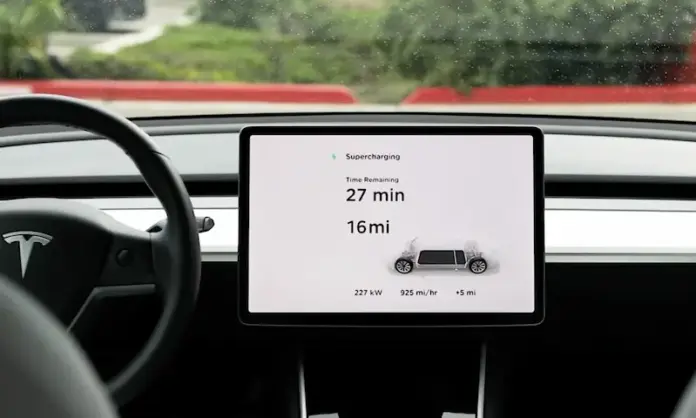
The phrase “Tesla touch screen not working” sounds simple, but the real-world problem can show up in several different; and equally frustrating; ways. Sometimes you’re actively changing a setting, entering navigation, adjusting HVAC, or opening the camera view, and the touchscreen suddenly stops responding to taps, swipes, or pinches.
Other times, the failure is inconsistent: the screen works for a moment, then lags, then freezes, then “wakes up” again. Some owners report that the display itself looks normal but becomes completely non-responsive, while others experience the most alarming version; an entirely blank or black screen. Regardless of the exact symptom, a non-working Tesla touchscreen is more than a minor inconvenience. Because Tesla integrates so many critical controls into the center display, it can quickly become a usability problem and a safety concern. This guide walks you through the most effective fixes; starting with the safest, lowest-risk steps and escalating only when necessary.
To troubleshoot like an expert, it helps to understand what you’re actually dealing with. Tesla’s touchscreen system is not a single component. It’s a combination of:
- The display panel (what you see)
- The touch digitizer (what registers your finger input)
- The Media Control Unit (MCU) or central computing system (what processes the interface and runs apps)
- Power and data connections (wiring and connectors that feed the system)
- Software (the operating environment, apps, and firmware Tesla updates regularly)
A failure in any one of those layers can produce a similar symptom: “the screen isn’t working.” That’s why the most reliable diagnostic approach is systematic; identify the specific behavior, try the least invasive reset first, and only then consider deeper electrical resets or hardware replacement.
How To Fix the “Tesla Touch Screen Not Working” Issue?
To fix the “Tesla touch screen not working” issue, perform a soft restart. Hold the scroll wheels for 10-30 seconds until the instrument cluster restart. You can also hard reset it by disconnecting the 12V battery for about 10 minutes. Replacement applies if the screen has irreversible damage.
That summary is accurate, but the best results come from applying each fix at the right time and for the right symptom. A soft restart is ideal for freezing, lagging, flickering, or temporary black-screen episodes caused by software hiccups. A hard reset (12V disconnect) is a deeper power cycle that can recover certain “stuck” conditions, but it carries more risk and should be treated carefully. Replacement becomes the correct solution when the display is physically damaged (cracks), when the touch layer is failing, or when the control hardware has degraded beyond recovery.
As mentioned, Tesla touchscreen malfunction is not rare. In early 2021, the manufacturer recalled specific models to resolve screen-related problems. The recall coverage matters because it highlights a crucial point: a failing display is not just annoying; Tesla and regulators treat it as a safety issue. When the screen goes blank or unresponsive, you can lose access to essential functions such as defogging/defrost controls, which are directly tied to visibility and safe driving.
In practice, the touchscreen is your command center for core vehicle operations: climate control, camera access, navigation, charging settings, and sometimes even glovebox access depending on model/software. When it fails, the car may still drive, but your ability to operate it normally can be compromised. That’s why the priority is not only “restore the screen,” but restore it safely and reliably.
Generally, most of the reported screen problems on Tesla are as follows:
- Slow response to inputs or loading: Sometimes, a touch input takes up to 5 seconds to respond. That’s particularly so after a long screen inactivity.
- The screen usually displays but doesn’t respond to touch inputs. Unresponsiveness (frozen display) often happens while driving.
- Yellow banding around the screen’s edge develops slowly with time. That often happens in the hot climate or when you’ve parked in the sun.
- The screen goes completely black and fails to recognize touch inputs.
Those four categories cover most owner experiences. Now let’s refine them with diagnostic context, because the “right fix” depends on what you’re seeing.
1) Slow response / long loading: Often tied to temporary software load, background processes, connectivity delays, or aging storage in older MCU systems. It can also happen after the car wakes from sleep and is still initializing services. Soft restarts and software updates are usually your best first move.
2) Frozen display / touch not registering: Commonly a UI process hang or memory overload. Sometimes the display is “alive” (video continues) but the touch layer or UI input queue is stuck. Soft restart is the first-line fix, followed by deeper resets if the problem repeats.
3) Yellow banding: Often heat/UV related and may represent a physical display/digitizer aging issue rather than software. This can start as cosmetic and become more noticeable over time. Tesla has addressed some cases through service programs depending on model year and region.
4) Completely black screen: This can be a severe software crash, power delivery issue, MCU failure, or display hardware failure. Some black screens recover with a soft restart; persistent black screens require deeper diagnosis and may lead to replacement.
Let’s now get into the details of how to resolve the highlighted concerns:
Possible Fix #1: Soft Restart
A soft restart is the safest and most effective first step for a wide range of Tesla screen issues. In real troubleshooting terms, this is how you rule out the most common culprit: a temporary software glitch. A soft restart can often restore a frozen, unresponsive, flickering, or black Tesla screen; especially when the underlying hardware is still healthy.
If you own a Model Y or Model 3, you’ll use the scroll wheels on each side of the steering wheel.
- Hold down the buttons for 10-30 seconds. If the screen is on, you’ll see it turn off.
- Wait for 10-30 seconds until the instrument cluster restart. That should clear any software issues you have.
Expert clarification: The goal here is to force a clean restart of the interface system. During the reboot, you may see the Tesla logo appear, and the system may take a short time to reload maps, media, Bluetooth, and other services. That delay can be normal. What you’re looking for is whether touch responsiveness returns after the system finishes initializing.
Note: You can also perform this reset procedure in another way. Hold the buttons on top of the scroll wheels on the steering wheel.
When a soft restart is most likely to work:
- Touch input is ignored but the screen still displays normal visuals
- The screen freezes mid-action (navigation, backup camera, media playback)
- The interface becomes extremely laggy after waking from sleep
- The screen goes black but you suspect it’s a temporary software crash (especially if it returns after reboot)
When a soft restart may not be enough:
- The screen is cracked or physically damaged
- Touch works only in certain areas (dead zones) indicating digitizer failure
- The screen repeatedly fails in the same way every day or every drive cycle
- The screen stays black across multiple reboots
If your Tesla model is other than the mentioned ones, the steps to soft restart are a bit different:
- You’ll need to enter the “Park” mode.
- Depress the brake pedal to the floor and hold it.
- Hold the button above your screen until you see a flash on the speedometer.
- Release the buttons but keep depressing the brake pedal.
- Press and hold the two scroll wheels on the steering wheel. Please do it for about 10 seconds to complete the procedure.
Note: Ensure you’ve parked your vehicle in a safe parking area. It’s essential before attempting any troubleshooting.
From a professional safety standpoint, that note is not optional. Never attempt any reset procedure while actively driving if the steps require braking, holding buttons for extended periods, or taking your attention off the road. If the screen fails while driving, the safest move is to continue driving normally using mirrors and awareness, then pull over when it’s safe and perform the restart in Park.
Pro tip: After a soft restart, give the system two full minutes to stabilize before deciding it “didn’t work.” Some features (like maps or camera views) may appear delayed during the first minute after reboot, especially on older hardware or in weak connectivity zones.
Possible Fix #2: Check for Slow Internet or Loose Connection
This step is often misunderstood, so let’s put it into clear technical terms. Internet speed does not usually control whether your touchscreen registers your finger input. However, internet instability can absolutely create the illusion of a “broken screen” because parts of the interface may hang while waiting for data; maps loading, streaming audio, voice commands, or software update checks.
An unstable internet connection can cause slow-loading issues on your Tesla screen. You can fix this by a soft restart using the scroll wheels on the steering wheel. You must also ensure a strong and stable internet before reconnecting.
From an expert perspective, here’s the best way to interpret this: if the screen is slow primarily inside apps or services that depend on data (navigation tiles, streaming, browser, voice functions), then connectivity can be contributing. If the entire touch layer is dead; no buttons respond, no swipes register; then connectivity is not your main issue.
Power cable connection faults can cause black screen or flickering issues. Thus, check and ensure there are no damaged cables and loose connections.
This is also a crucial point: some screen failures are actually power-delivery failures. A loose connector, a wiring issue, or power instability can lead to flickering, random resets, black-screen events, or a screen that turns on and off unpredictably. While most owners will not be inspecting internal harness connections themselves (and shouldn’t unless qualified), it’s still important to recognize the signs of a power-related issue:
- The screen flickers when the car hits bumps
- The screen goes black briefly and returns without a reboot
- The issue worsens in very hot or very cold conditions
- The problem occurs with other electrical oddities (random warnings, Bluetooth drops, camera outages)
Note: Dust and debris on the screen could also affect its touch sensitivity. Wipe the screen using a soft, dry microfiber cloth.
Cleaning matters more than people think. Touchscreens rely on capacitive sensing; oils, residue, and grime can reduce responsiveness or cause misreads; especially at the edges. Use a clean, dry microfiber cloth as suggested. If you must use a screen-safe cleaner, apply it to the cloth (not directly to the screen) to reduce the chance of liquid intrusion around edges.
Expert diagnostic shortcut: If your screen responds normally after cleaning and reboot, but gradually becomes less responsive again, look at your environment and habits: frequent sunscreen/hand lotion use, dusty climate, or repeated exposure to cleaning products that leave residue can all contribute. The fix isn’t complicated; regular proper cleaning; but identifying the cause saves you from unnecessary service visits.
What you can check without tools:
- Confirm your Tesla has stable Wi‑Fi (at home) or cellular signal (on the road)
- Temporarily disable high-data services (streaming) and see if the UI feels more responsive
- Observe whether the slowdown is “app-specific” (maps/media) or “global” (all taps delayed)
If the slowdown is global and consistent, focus more on software stability and hardware health than on connectivity.
Possible Fix #3: Hard Reset
If the solutions above don’t bear fruits, a hard reset may be what the system needs to function normally again. This solution has worked for many people experiencing black screen issues. To do a hard reset:
From a technician’s viewpoint, a hard reset via 12V battery disconnect is essentially a full power cycle. It forces modules to shut down completely, clears certain transient states, and can recover systems that are “stuck” beyond what a standard UI reboot can fix. However, because Tesla vehicles are highly computerized, this step should be handled with caution.
- Park your Tesla in a safe location – away from the elements.
- Remove the 12 volts battery by following the guidelines in your owner’s manual. You’ll need a wrench.
- Allow the engine to rest for 10-15 minutes. That will ensure the residual current in the vehicle’s computer has been depleted.
- Reconnect the car battery and start the vehicle as usual.
Expert clarification: The instruction to wait is important because many control modules retain residual charge briefly. A short disconnect may not fully reset certain electronics. The 10–15 minute rest period increases the chance of a true full reset.
Warning: A slight mistake while removing the battery could seriously affect your vehicle’s electronics. Only try it if you’re confident working with cars and their electronics.
That warning deserves emphasis. If you are not comfortable with battery disconnection procedures; especially on a modern EV; do not “learn on the fly.” Tesla’s service system is designed for safe diagnostic workflows. An improper disconnect can cause electrical damage, trigger faults, or create a situation where the car behaves unpredictably afterward.
When a hard reset is worth considering:
- Your screen is black and soft restarts don’t bring it back
- Your screen repeatedly freezes immediately after boot
- Your screen flickers or resets constantly and you suspect a module state issue
- You recently experienced a low 12V event (weak battery symptoms, unusual warnings)
When a hard reset is not the right move:
- The screen is cracked or physically damaged (replacement is likely required)
- You see yellow banding that has developed over time (typically not reset-related)
- Touch sensitivity is failing only in certain areas (digitizer issue likely)
- You are under warranty and prefer service documentation for a quicker replacement outcome
Professional alternative to consider before disconnecting the 12V: If you can still access menus, some owners find that power-cycling from the vehicle controls (where available) is a safer intermediate step than physically disconnecting the battery. This keeps you away from terminals and reduces risk. If your screen is fully black, that option may not be available; which is where service support can be the safer route.
Also, keep in mind: a hard reset can temporarily “mask” a failing component. If the touchscreen returns for a day and then fails again, that’s a classic sign the underlying issue is not purely software; it’s likely hardware degradation or power instability. In those cases, repeated resets may become a time-wasting loop rather than a true fix.
Possible Fix #4: Replace the Faulty Screen
At a certain point, the correct diagnosis is simple: the damage to your Tesla touchscreen is irreversible, and replacement is the only realistic solution. This is especially true for any physical impact damage. For example, there’s no practical or safe repair method for a cracked screen. Even a hairline crack can interrupt the touch digitizer’s sensing layer, create dead zones, and eventually spread; especially with temperature changes.
Severe yellow banding or an utterly black screen can imply that the unit has a serious fault. Another notorious issue is the degradation of the memory built into the processor that controls the media control unit (MCU). The condition affects the display, and there’s no way to fix it without replacement.
From an expert standpoint, this MCU-related point is critical because it explains why some older Teslas developed persistent screen issues that resets couldn’t solve. When the underlying memory degrades, symptoms can include sluggish performance, repeated reboots, and eventual total failure. If the root cause is memory degradation, the system isn’t “glitching”; it’s failing at the hardware level.
The touch screen replacement may be under warranty, especially if your car is a model year between 2014 and 2018. Visit your local dealer and see if they can repair it. Many people have reported having experienced no issues after replacing their screens. That could also be the exact solution you need.
Expert guidance on warranty strategy: If your Tesla is within warranty; or if your vehicle falls within an applicable service campaign; avoid DIY electrical interventions that could complicate your service claim. Instead, document the symptoms clearly: record a short video showing the screen freezing, blacking out, flickering, or failing touch response. Provide that evidence to Tesla service through the app if possible.
Note: Book an appointment through Tesla’s service center app to get them to fix your screen quickly. Some centers may accept a video of your screen malfunctioning as sufficient proof to replace it. That may only apply if your vehicle’s warranty is active and it also covers the screen. Talk to an authorized dealer to be sure.
That advice is practical for one simple reason: service centers often triage based on evidence and repeatability. Intermittent faults can be difficult to replicate on demand. A clear video showing the behavior; especially if it shows the car being in normal conditions; can shorten the diagnostic process and reduce back-and-forth appointments.
How to recognize “replacement-level” symptoms quickly:
- Physical cracks or visible panel damage
- Persistent black screen that does not recover after multiple soft restarts
- Dead touch zones (certain areas never register input)
- Severe yellowing/banding that worsens and affects usability
- Repeated boot loops or daily recurrence despite resets
In those scenarios, it’s usually more cost-effective; in time, frustration, and sometimes money; to pursue replacement or service intervention rather than continuing to “trial and error” resets.

Advanced Troubleshooting: What an Expert Checks Next
If you’ve tried the core steps; soft restart, cleaning, connectivity sanity checks, and (where appropriate) a hard reset; but you still experience touchscreen failures, the next layer is about pattern recognition. Tesla screen issues often leave clues in when they happen, how they recover, and what else is occurring in the vehicle at the same time.
Below are advanced checks that don’t require specialized tools but help you narrow the cause so you can decide whether you’re dealing with a software hiccup, a power problem, or a failing component.
1) Identify the failure pattern (time, temperature, and vehicle state)
In professional diagnosis, “when it happens” is often more informative than “that it happens.” Track the conditions:
- Does it happen on first start of the day? That can implicate wake-up initialization or low 12V behavior.
- Does it happen after the car has been parked in the sun? Heat can worsen display/digitizer issues and accelerate yellow banding symptoms.
- Does it happen after charging? Sometimes software processes run post-charge; also cabin preconditioning can change thermal conditions.
- Does it happen only while driving? That may suggest vibration-related connector issues or intermittent power/ground.
- Does it happen after a software update? That points you back toward software initialization, patch issues, or post-update recalibration behavior.
Write down the pattern. If you end up scheduling service, those details can accelerate the diagnosis dramatically.
2) Separate “touch failure” from “display failure”
These are often confused, but they lead to different conclusions:
- Display failure: Screen goes black, flickers heavily, shows lines/artifacts, or loses brightness.
- Touch failure: Screen looks normal but taps don’t register, swipes don’t move menus, or only some areas respond.
A touch-only failure can indicate digitizer problems, software input queue issues, or contamination. A display failure can indicate panel power issues, internal damage, or an MCU-related crash. The distinction matters because a screen that is visibly working but not registering touch may be recoverable (software) or may be a digitizer replacement issue (hardware).
3) Consider 12V system health (without guessing)
While the article already mentions disconnecting the 12V battery for a hard reset, an expert also considers whether the 12V system is healthy in the first place. EVs still depend on stable low-voltage power for computers and control modules. If the 12V system is weak, you can see strange electronics behavior long before you get a complete failure.
Signs that can correlate with low-voltage instability include random warnings, screens rebooting unexpectedly, and features behaving inconsistently. If you suspect this, Tesla service can verify battery health quickly. It’s a better long-term fix than repeatedly resetting a system that’s struggling with unstable supply voltage.
4) Understand heat stress and “yellow banding” realistically
Yellow banding tends to develop gradually and is often reported more in hot climates or vehicles regularly parked in direct sunlight. This is consistent with long-term thermal and UV exposure affecting adhesive layers or panel characteristics. The key diagnostic insight: yellow banding is rarely solved by rebooting. If banding is severe or worsening, service evaluation is usually the right path.
If your banding is mild but you want to slow progression, the practical prevention steps are simple: use windshield shades, park in shade when possible, and reduce cabin heat soak. These measures don’t “repair” the issue, but they can reduce stress on the display assembly over time.
5) Don’t ignore safety-critical loss of controls
If your screen failure prevents you from controlling defogging/defrosting, wipers (in some configurations), camera views, or other visibility-related functions, treat it as a priority issue. Even if the vehicle still drives, the inability to manage visibility systems is a legitimate safety risk; exactly the kind of scenario referenced in Tesla’s recall actions and safety discussions.
In these cases, the “expert move” is not to keep experimenting on the road. It’s to stabilize the situation (pull over, reboot in Park) and schedule service promptly if the issue recurs.
Practical “Do This First” Checklist (Fast Troubleshooting)
If you want the quickest path through the most effective steps, use this checklist in order. It’s designed to solve the most common touchscreen problems without risking the vehicle’s electronics.
- Park safely and avoid troubleshooting while driving.
- Clean the screen with a dry microfiber cloth to eliminate touch sensitivity interference.
- Perform a soft restart (hold steering wheel scroll wheels 10–30 seconds).
- Wait for full boot (give the system 1–2 minutes to stabilize).
- Test touch input across multiple UI areas (not just one app).
- Check connectivity if the issue is “loading lag” rather than touch failure.
- Check for software updates once you can access the Software menu again.
- Escalate to service if the problem repeats, is persistent, or involves a black screen.
- Consider hard reset only if qualified and if the screen remains black after soft restarts.
This approach prevents the most common mistake owners make: jumping straight to the riskiest step (battery disconnect) when the issue might have been solved with a clean reboot and a minute of patience.
When Replacement Is the Smartest Option (and Not Overkill)
Owners sometimes hesitate to replace a screen because it feels “too extreme.” But in modern Tesla architecture, the display is a central interface component; when it becomes unreliable, it impacts daily usability and can create recurring safety concerns.
Replacement becomes the most rational option when:
- There is any physical crack or impact damage
- The screen shows persistent black-out events and doesn’t recover reliably
- Touch fails in consistent dead zones
- The unit shows signs of severe internal failure (repeat boot loops, daily freezing, worsening behavior)
- Service confirms MCU memory degradation or display hardware fault
In those conditions, continuing to reset the system may only delay the inevitable while adding frustration. A properly completed repair or replacement typically restores normal operation and removes recurring uncertainty.
Take Away
Tesla vehicles are one of the century’s technological marvels. They boast cutting-edge features that make your ride safer, more comfortable, and eco-friendlier. However, these cars aren’t perfect. Once in a while, your model will experience an issue, such as the touch screen not working.
The easiest way to deal with the problem is to soft restart the screen. If that doesn’t work, perform a hard reset and ensure no loose connections. A screen that’s damaged beyond repair will require replacement. Please execute the solutions above individually and see which works for you!
From an expert viewpoint, the key is to treat touchscreen failure as a diagnostic process, not a guessing game. Start with the low-risk steps (cleaning and soft restart). If the issue is intermittent, track the pattern; heat, time of day, software updates, or driving vibrations. If the screen goes fully black or shows signs of hardware decline, move toward professional service sooner rather than later. You’ll save time, protect the vehicle’s electronics, and get back to predictable operation.
Finally, remember the safety angle. If your screen failure affects visibility functions like defogging/defrosting, treat it as urgent. A Tesla can still move without a screen, but driving without key visibility controls is not a compromise worth making.

