
Your Tesla’s center display goes dark, freezes, or throws up a “display unavailable” message, and suddenly your $50,000-plus car feels like a very expensive paperweight. No navigation. No climate controls. No media. And depending on your model, potentially no access to some driving settings either.
It is genuinely frustrating, especially when you are used to how seamlessly everything on a Tesla is supposed to work. But here is the good news: most center display issues are fixable, and many of them you can resolve yourself without a service appointment.
This guide walks through every likely cause, the fixes that actually work, and what to do when the problem goes beyond a simple reboot.
Why Your Tesla Center Display Goes Unavailable
Before jumping into fixes, it helps to understand what is actually happening. The center display in your Tesla is not just a screen. It is the primary interface for almost everything in the car, from navigation and entertainment to climate control and charging settings. It runs on dedicated hardware inside the car, most notably the Media Control Unit (MCU), which communicates with the rest of the vehicle’s systems.
When the display goes unavailable, the problem can be sitting at the software level, the hardware level, or somewhere in between. The cause determines the fix, which is why it is worth spending a few minutes diagnosing before you start trying solutions at random.
The Most Common Causes (And What to Do About Each One)
1. Software Glitches and Firmware Bugs
This is by far the most common culprit. Tesla’s software is sophisticated, but no software is immune to bugs. A failed update, a minor crash in the display’s operating system, or a conflict between background processes can cause the center screen to freeze, go black, or show an error message.
The good news is that software glitches are usually the easiest to fix. Tesla’s two-level reboot system handles the majority of these cases.
Soft Reboot (try this first):
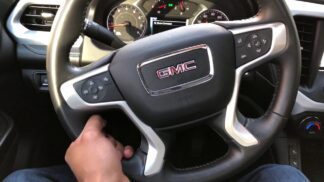
- While the car is in Park, press and hold both scroll wheel buttons on the steering wheel simultaneously.
- Hold them until the center display goes dark and begins to restart. This usually takes 10 to 15 seconds.
- Release the buttons and wait for the system to fully boot back up. This can take a minute or two.
Hard Reboot (if the soft reboot did not work):
- Park the car and power it off completely through the touchscreen (if it is still partially responsive) via Controls > Safety > Power Off.
- Wait at least two minutes without opening any doors or touching any controls. This gives the system time to fully shut down.
- Press the brake pedal, then press and hold both steering wheel scroll buttons simultaneously until the display restarts.
A hard reboot resets the MCU more thoroughly than a soft reboot. For the majority of software-related display issues, one of these two steps gets things back to normal.
If your display is going unavailable repeatedly after updates, it is worth checking Tesla’s owner forums and the Tesla app for any known bug reports affecting your software version. Tesla frequently pushes over-the-air patches to address widespread issues, sometimes within days of a problematic update rolling out.
2. eMMC Memory Chip Failure
This one is more serious, and it has affected a significant number of Tesla owners, particularly those with older Model S and Model X vehicles from the 2012 to 2018 era.

The eMMC (embedded MultiMediaCard) chip is a small flash memory component inside the MCU that stores log files, navigation data, and other operating information. The problem is that the chip has a finite number of write cycles, and early Tesla MCU designs wrote data to it constantly, including dashcam footage logs, system logs, and software update data. Over time, the chip fills up and eventually fails.
When the eMMC chip fails, the center display can become completely unavailable. The screen may go blank, show error messages, or fail to boot at all. Rebooting the system will not fix this because the problem is hardware-level, not software.
This issue became significant enough that the National Highway Traffic Safety Administration (NHTSA) investigated it, and Tesla issued a recall covering affected Model S and Model X vehicles. If your vehicle falls into the affected range, Tesla may replace the eMMC chip or the entire MCU at no cost under the recall.
Outside of the recall window, eMMC chip replacement is a job for a Tesla-certified technician or a reputable independent Tesla specialist. The chip itself is inexpensive, but the labor involved in accessing and replacing it requires skill and specialized equipment. Do not attempt this yourself unless you have electronics repair experience.
3. Faulty Media Control Unit (MCU)
The MCU is the brain behind your center display. It processes everything you see and interact with on that screen. If the MCU itself develops a hardware fault beyond just the eMMC chip, the display can become permanently unavailable or intermittently unavailable in ways that no reboot will resolve.
Tesla has gone through two main MCU generations. The MCU1, used in earlier Model S and Model X vehicles, has been more prone to failure due to the eMMC issue mentioned above. The MCU2, introduced around 2018 and used across Model 3, Model Y, and updated Model S and X vehicles, is significantly more robust.
Signs that your MCU specifically is the problem include:
- The display fails to reboot even after multiple hard reboot attempts.
- The display turns on briefly and then immediately goes dark again.
- Error messages reference hardware components rather than software processes.
- The issue appeared suddenly without any preceding software update or obvious trigger.
MCU replacement is not a DIY job. Tesla service centers can diagnose it with their proprietary diagnostic tools and replace the unit if necessary. The cost varies, but MCU replacement outside of warranty coverage can run anywhere from $1,500 to over $3,000 depending on the model and MCU generation. This is where having an extended warranty or being within the recall window matters enormously.

4. A Blown Fuse or Disconnected Cable
Less common than software or MCU issues, but worth checking. Your Tesla’s center display is connected to the car’s electrical system through a network of fuses and cables. A blown fuse or a cable that has come loose, possibly from a previous repair or modification, can cut power to the display entirely.
You can check the fuse box yourself if you are comfortable doing so. The owner’s manual for your specific Tesla model identifies which fuse corresponds to the center display or MCU. If a fuse is blown, replacing it is straightforward. If it blows again immediately after replacement, that points to an underlying electrical fault that needs professional attention.
Loose cables are harder to diagnose without pulling panels apart. If you recently had bodywork done, had the car detailed, or had any interior work performed, it is worth asking whether anyone accessed the area behind or around the center console. Accidental cable disconnections during unrelated work do happen.
5. Overheating
Tesla’s MCU generates heat, and in some situations, particularly in very hot climates or after extended use, the display can temporarily become unavailable as a protective measure against overheating. Tesla issued a recall specifically related to this on some vehicles, where the display would blank out in high-temperature conditions.

If your display tends to go unavailable specifically during hot weather or after long drives in summer, overheating may be the trigger. Parking in the shade, using Tesla’s cabin overheat protection feature, and ensuring the car’s ventilation is working properly can help. If the problem is persistent and heat-related, check whether your vehicle is covered by any active Tesla recall related to display overheating.
Step by Step: What to Try Before Calling Tesla Service
Here is a practical sequence to work through when your Tesla center display goes unavailable:
- Attempt a soft reboot. Press and hold both steering wheel scroll buttons until the display restarts. Wait for full reboot.
- If soft reboot fails, try a hard reboot. Power off the car completely, wait two full minutes, then press brake and both scroll buttons simultaneously.
- Check for pending software updates. Open the Tesla app on your phone. If an update is waiting, it may be related to the display issue. Allow it to install.
- Check for active recalls. Log into your Tesla account and check the service section. You can also check the NHTSA recall database by entering your VIN. If your vehicle is under a recall related to the display or MCU, Tesla may fix it at no cost.
- Check the fuse box. If you are comfortable doing so, locate the relevant fuse for the MCU or center display and check whether it is blown.
- Contact Tesla service. If none of the above resolves the issue, schedule a service appointment through the Tesla app. Provide as much detail as possible about when the problem started, whether it is constant or intermittent, and whether it followed a software update or another event.
Your Replacement and Repair Options
Tesla’s Extended Warranty Coverage
Tesla offers an extended warranty that covers the MCU and center display for repairs and replacements. If you purchased an extended warranty, the terms will specify the coverage period and what components are included. MCU failures generally fall under this coverage, which means Tesla-certified technicians will handle the repair using original Tesla parts.
Even if your standard warranty has expired, it is worth calling Tesla directly and asking whether your specific issue is covered under any extended coverage or recall program. Tesla has been known to extend goodwill repairs in cases where a known defect, like the eMMC chip failure, is involved, even for vehicles slightly outside the official warranty window.
Tesla Service Centers
For hardware-level issues like MCU failure or eMMC chip replacement, Tesla’s own service centers are the most reliable option. They have the proprietary diagnostic software to accurately identify the problem and the genuine parts needed to fix it correctly.
Scheduling is done through the Tesla app, and Tesla often sends mobile service technicians for repairs that do not require a full lift or specialized equipment. Depending on your location, a mobile technician may be able to come to your home or office rather than requiring you to bring the car in.
Independent Tesla Specialists
A growing number of independent shops specialize specifically in Tesla repairs. These shops often charge less than Tesla service centers for out of warranty work, and many have developed strong expertise in MCU repairs and eMMC chip replacement. The trade-off is that they may use aftermarket or refurbished parts, and the work will not carry Tesla’s official service warranty.
If you go this route, do your research. Look for shops with strong reviews from other Tesla owners, ask specifically about their experience with MCU work, and get a clear written quote before authorizing any repairs.
Aftermarket Display Units
For owners whose display issues are not covered by warranty and who are facing high repair costs, aftermarket display units are another option. Several third-party manufacturers produce display units designed to work with specific Tesla models. Some of these even offer features beyond what the stock display provides, such as different interface layouts or additional connectivity options.
Before going this route, verify compatibility carefully. Not all aftermarket displays integrate fully with every Tesla model and year. Features like Autopilot, over-the-air updates, and vehicle settings access may be affected depending on how well the aftermarket unit integrates with your car’s existing systems. Professional installation is strongly recommended to avoid creating new problems while solving the original one.
Tesla Recalls and Over the Air Updates: What You Need to Know
One of Tesla’s genuine advantages over traditional automakers is its ability to push software fixes directly to your car without requiring a service visit. When a software bug causes widespread display issues, Tesla can often deploy a fix overnight that resolves the problem for thousands of vehicles simultaneously.
A notable example: in 2022, Tesla recalled approximately 130,000 vehicles in the United States for touchscreen display malfunctions that could occur during certain charging scenarios. Rather than requiring owners to bring cars into service centers, Tesla resolved the issue through an over-the-air software update. Owners did not need to do anything beyond making sure their car received the update.
This is why staying current on Tesla software updates matters. An update that seems routine may contain fixes for display issues you have not even experienced yet, as well as patches for problems that are already bothering you.
To stay informed about recalls affecting your vehicle:
- Check the NHTSA recall database at nhtsa.gov and enter your VIN. This shows every active and completed recall for your specific vehicle.
- Monitor your Tesla app for recall notifications and service alerts.
- Check reputable Tesla owner communities like the Tesla Motors Club forum, where members often report recall information and software issue patterns early.
If you believe your display issue may be related to a known defect or a recall, report it to Tesla customer service at 877-798-3752. Your report helps Tesla identify patterns across the fleet and can contribute to faster recall decisions and software fixes for everyone.
Quick Reference: Tesla Center Display Issues at a Glance
| Symptom | Most Likely Cause | Recommended Action |
|---|---|---|
| Display freezes or becomes unresponsive | Software glitch | Perform soft reboot using scroll wheels |
| Display goes black and will not reboot | Software crash or MCU fault | Attempt hard reboot; contact Tesla if it fails |
| Display fails completely on older Model S or X | eMMC chip failure | Check for active recall; contact Tesla service |
| Display goes unavailable in hot weather | Overheating | Check for recall; use cabin overheat protection |
| Display blank after recent repair or bodywork | Disconnected cable or blown fuse | Inspect fuse box; check for loose connections |
| Intermittent display issues after a software update | Firmware bug | Check for a follow-up OTA update; reboot and monitor |
| Display shows hardware error messages repeatedly | MCU hardware failure | Schedule Tesla service for professional diagnosis |
Tips to Reduce the Risk of Future Display Problems
You cannot prevent every possible display failure, but a few habits can reduce the likelihood of running into problems:
- Keep your software updated. Install Tesla updates promptly. Updates often contain stability improvements and bug fixes that prevent display issues from developing.
- Use cabin overheat protection. This feature keeps the interior below a set temperature when the car is parked, which also helps protect the MCU from sustained heat exposure.
- Avoid leaving the car in extreme heat for extended periods. Parking in the shade or a garage when possible reduces thermal stress on the electronics.
- Do periodic reboots even when things seem fine. Some Tesla owners do a soft reboot every few weeks as routine maintenance. It clears minor software issues before they develop into bigger ones.
- Check for recalls proactively. Do not wait for a problem to appear. Knowing your vehicle’s recall status means you can get covered repairs done before something fails.
A Tesla center display going unavailable is genuinely inconvenient, but it is rarely the end of the world. Most cases are resolved with a reboot or a software update. The minority that require hardware intervention are still fixable, especially if your vehicle is covered under warranty or a recall program. The worst outcome, paying out of pocket for MCU replacement on an out of warranty car, is manageable when you know your options and shop around for repair costs.
What you should not do is ignore it. A display that goes unavailable intermittently today can become permanently unavailable tomorrow, and catching the problem early almost always means a faster, cheaper fix than waiting until it fails completely.