
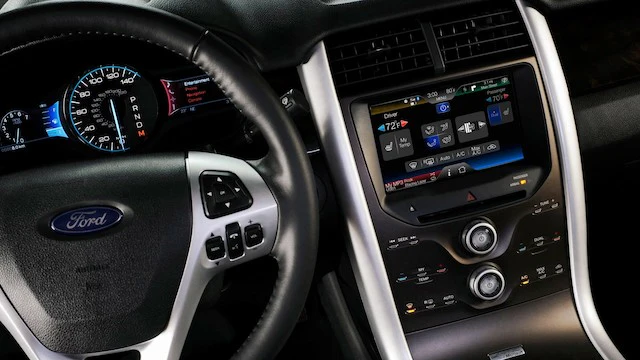
Most Ford owners use their Sync 3 system every single day without knowing there is a whole other layer of settings hiding underneath the surface. Not just a couple of extra options tucked away in a submenu. A full hidden diagnostic and customization menu that Ford never advertised, never put in the owner’s manual, and never told you about at the dealership.
But it is there. And once you know how to get into it, you open up a set of tools that let you test your speakers, run system diagnostics, change the startup logo, swap out the interface theme, and check GPS signal strength, all from the infotainment screen without any special equipment.
This guide is going to show you exactly how to access the Ford Sync 3 hidden menu, what you can do inside it, and how to make the most of the standard Sync 3 settings that most people also do not fully explore.
What Is Ford Sync 3 and Why Does the Hidden Menu Exist?
Ford Sync 3 is the third generation of Ford’s in-vehicle infotainment platform. It replaced the older MyFord Touch system, which had a reputation for being sluggish and unreliable. Sync 3 was a significant improvement: faster response times, a cleaner interface, Apple CarPlay and Android Auto compatibility, voice command recognition, integrated navigation, and a layout that actually made sense to use.
It rolled out across a wide range of Ford and Lincoln models starting in 2016 and continued through the early 2020s before Ford transitioned to Sync 4. If your Ford was built somewhere in that window, there is a very good chance you are running Sync 3 right now.
The hidden menu within Sync 3 was not built for drivers. It was built for Ford engineers and dealership technicians. The idea was to give service professionals a quick way to run diagnostics on the infotainment system’s components, check system information, and verify that everything was functioning correctly after a repair or software update. At some point, Ford owners discovered the button combination that unlocks it, and the word spread from forum to forum.
Ford never officially documented it for consumers, and they have not locked it down either. So it is there, it is accessible, and it is worth knowing about.
The Standard Sync 3 Settings: What You Already Have Access To
Before getting into the hidden menu, let’s make sure you know your way around the standard settings. A lot of owners only ever scratch the surface of what Sync 3 already offers through the normal interface, and some of these features are genuinely useful.
To access the standard settings, tap the Settings icon in the feature bar at the bottom of the touchscreen. From there, you can swipe left or right to move between different setting categories, swipe up or down to scroll through options within a category, and use the scroll bar arrow for longer lists. If you want more detail about any specific option, tap the information icon.
Here is a breakdown of what the standard Sync 3 settings actually include.
Voice Control Settings
Sync 3’s voice command system is more capable than most people give it credit for, and the settings menu lets you tailor how it behaves.
- Advanced mode: Enables natural language processing so you can speak in full sentences rather than memorizing specific command phrases. This is worth turning on if you have not already.
- Phone confirmation: Controls whether the system reads back your phone number before dialing. Useful if you frequently call new numbers.
- Voice command list: Displays the available commands so you know what the system can actually understand and respond to.
Sound Control Settings
This is where you adjust how audio sounds inside the cabin. Whether you have the base audio system or a premium setup, these controls let you shape the sound to your preference.
- Balance and fade: Shifts audio output between left and right speakers, and between front and rear. If one speaker sounds louder than others, this is how you compensate.
- Bass: Controls the low-frequency output. Turn it up for more punch, down for a cleaner sound.
- Treble: Adjusts high-frequency clarity. Higher treble settings bring out vocal detail and cymbals. Lower settings smooth out harsh or bright audio.
- Midrange: Controls the mid-frequency band, which covers most of the vocal range and instruments like guitars.
- Surround sound: Simulates a wider soundstage. Some people love it, others find it artificial. Try both settings and go with what sounds better to your ears.
- Occupancy mode: Adjusts audio output based on how many seats are occupied. A useful feature if you frequently drive alone and want sound optimized for the driver’s seat.
- Sound settings stereo: Switches between stereo and mono output modes.
Bluetooth Settings
Bluetooth needs to be enabled before these options become available. Once it is on, you have access to:
- Bluetooth pairing: Puts the system into pairing mode so new devices can connect.
- Enable paired device: Activates a previously paired device so it connects automatically when in range.
- Connect, disconnect, or delete devices: Manages your paired device list. If your phone is not connecting automatically, deleting it and re-pairing often fixes the issue.
Mobile Apps Settings
This section controls which apps on your connected phone are allowed to interact with the Sync 3 system. Once mobile apps are enabled, you can:
- Update available mobile apps through the system
- Grant or deny access to all connected mobile apps at once
- Control permissions for individual apps, so you can allow some and block others
This is worth paying attention to from a privacy standpoint. Not every app on your phone needs access to the vehicle’s infotainment system, and this setting lets you control that precisely.
How to Access the Ford Sync 3 Hidden Menu
Now for the part most people came here for. Here is exactly how to get into the hidden diagnostic menu on Ford Sync 3.
You need to press two buttons simultaneously:
- The right arrow button on your steering wheel (the one used to navigate through menus on the instrument cluster)
- The right arrow or scan button on the infotainment panel itself (located on the physical controls beside or below the touchscreen)
Press and hold both of these buttons at the same time for approximately 5 seconds. Keep holding until the screen changes.
When the hidden menu opens, the system will automatically begin running a speaker diagnostic test. You will hear audio cycling through each speaker in sequence. If you do not want to sit through the test, there will be a cancel option on the screen that lets you skip past it and go straight into the menu.
A few important notes before you start exploring:
- The vehicle should be started and the infotainment system should be fully booted before you attempt this. Trying it while the system is still loading will not work.
- The button layout varies slightly between Ford models. If the combination above does not work on your first attempt, check your specific model’s forum for any variations. The underlying combination is the same across most Sync 3 vehicles, but button placement differs.
- This menu is read-only for most diagnostic functions. You are testing and viewing, not reprogramming.

What You Can Actually Do Inside the Ford Sync 3 Hidden Menu
Once you are in, here is what the hidden menu gives you access to.
Speaker and Audio Diagnostic Test
This is the first thing the system does automatically when you enter the hidden menu. It cycles a test tone through each speaker individually so you can verify that every speaker in the vehicle is working correctly.
This is genuinely useful. If one of your speakers has blown or a connection has come loose, you will hear the silence or distortion on that specific speaker during the test. It tells you exactly which speaker has the problem without having to sit there panning audio manually or guessing.
In a vehicle with a premium audio system, like the B&O or Sony setups available in some Ford models, this test covers every driver in the system, including tweeters, midrange speakers, woofers, and any rear deck speakers. Pay attention to each one.
Display Diagnostic Test
The hidden menu includes a screen test that cycles the display through different colors and patterns. The purpose is to help identify dead pixels, backlight bleed, color uniformity problems, or any other display defects that might not be obvious during normal use.
Most people’s screens look fine during regular use, but a solid color test pattern reveals problems that video and image content can hide. If you see any dark spots, lines, or areas that look different from the rest of the screen during the color cycle, that is worth noting and potentially mentioning to your service advisor.
GPS Signal Strength Check
Inside the hidden menu, you can tap the GPS signal icon to view real-time GPS signal strength and satellite data. This shows you how many satellites the system is currently locked onto and the quality of the signal.
This is useful if you have been having navigation issues. If your GPS takes a long time to lock on, gives you inaccurate location data, or loses signal frequently, this screen tells you whether the problem is signal reception or something else in the system. A vehicle parked outside in an open area should show strong signal from multiple satellites. Weak signal in those conditions points to a potential antenna or hardware problem.
Changing the Ford Sync Startup Logo and Theme
This is the customization feature that gets the most attention. The hidden menu gives you the ability to change the logo that appears when the infotainment system first boots up, as well as the visual theme of the interface.
Here is how to do it step by step:
- Start the vehicle and wait for the Sync 3 system to fully load.
- Access the hidden menu using the button combination described above: right arrow on the steering wheel plus scan button on the infotainment panel, held together for 5 seconds.
- When the speaker diagnostic starts, either wait for it to complete or tap the cancel option to skip it.
- Navigate to Testing Settings and enable the setting. This step is important because it allows you to return to the hidden menu directly from the standard settings menu without having to use the button combination again.
- Find the Theme option and select it.
- Browse the available themes and select the one you prefer.
The available themes and logo options vary depending on your software version and vehicle model. Some versions offer more options than others. Do not expect a massive selection, but there are enough choices to give the interface a noticeably different look if the default does not suit you.
Enabling the Testing Settings Toggle
This is a small but practical detail worth highlighting on its own. When you enable the Testing Settings option inside the hidden menu, it adds a shortcut that lets you get back into the hidden menu from the standard settings screen without repeating the button combination every time.
If you plan to use the hidden menu more than once, turn this on. It saves you the trouble of holding down buttons every time you want to run a diagnostic or check GPS signal.
System and Ford Information
The hidden menu also displays detailed system information including software version numbers, hardware identifiers, and other technical data about your specific Sync 3 installation. This is the section to check if you are trying to verify what software version you are running, or if you want to confirm whether your system is eligible for a specific update.
A Complete Overview of the Hidden Menu Features
| Feature | What It Does | Useful For |
|---|---|---|
| Speaker diagnostic test | Cycles test tone through each speaker | Identifying blown or disconnected speakers |
| Display diagnostic test | Tests screen for dead pixels and color issues | Spotting display defects not visible during normal use |
| GPS signal check | Shows satellite lock count and signal strength | Diagnosing navigation accuracy problems |
| Theme selection | Changes the visual appearance of the interface | Personalizing the infotainment look |
| Startup logo change | Changes the boot screen logo | Customization preference |
| Testing settings toggle | Adds hidden menu shortcut to standard settings | Easier access for repeat use |
| System information | Displays software version and hardware data | Verifying software version, preparing for updates |
What Software Version Do You Need?
The hidden menu is a Sync 3 feature. If your vehicle is running an older version of the Ford Sync software, specifically anything below Sync 3, you will not be able to access it. The button combination simply will not trigger the hidden menu because the menu does not exist in older software versions.
To check your current software version:
- Tap Settings on the Sync touchscreen.
- Navigate to General or About depending on your version.
- Look for the software version number listed there.
If you are running Sync 1 or Sync 2, upgrading to Sync 3 is possible on some vehicles but it is not a simple software download. It typically requires a hardware module swap, not just a software update. This is a job for a dealership or a shop familiar with Ford infotainment upgrades. The cost and feasibility depend on your specific vehicle and model year.
If you are already on Sync 3, make sure you are running the latest available version. Ford has released multiple Sync 3 updates over the years that improve stability, add features, and fix known bugs. Running outdated software can cause the kind of system glitches and quirks that the hidden diagnostic menu is designed to help identify.
How to Update Ford Sync 3 Software
Keeping Sync 3 updated is simpler than most people assume. Ford offers two main update methods.
Over-the-Air Updates
If your vehicle has a built-in Wi-Fi hotspot or is connected to a hotspot, Sync 3 can receive and install over-the-air updates automatically. Check the system settings for available updates and follow the prompts. Do not turn the vehicle off while an update is installing. Let it complete fully.
USB Updates
Visit Ford’s official Sync update website, enter your VIN, and download the latest software package for your specific vehicle. Load it onto a USB drive formatted correctly, plug it into the vehicle’s USB port, and follow the on-screen instructions. The process takes about 30 to 45 minutes and requires the vehicle to be running or in accessory mode throughout.
A note on USB drives: not every USB drive works reliably for this process. Ford recommends using a USB 2.0 drive with adequate storage space. Some owners have had failed updates using cheap or off-brand USB drives. Use a quality drive to avoid a corrupted installation.
Practical Uses for the Hidden Menu: Real-World Scenarios
It is one thing to know the hidden menu exists. It is another to know when it is actually worth using. Here are a few real-world situations where accessing the Sync 3 hidden menu is genuinely helpful.
You Think One of Your Speakers Is Blown
Instead of sitting in the parking lot trying to pan audio left and right and strain your ears to figure out which speaker is dead, just go into the hidden menu and run the speaker diagnostic. The system will tell you exactly which speaker is not performing correctly by cycling through them one at a time. This saves time and gives you a definitive answer before calling a shop.
Your Navigation Keeps Losing Signal or Giving Wrong Locations
Pull up the GPS signal screen in the hidden menu while parked outside in an open area. If the satellite count is low or the signal strength is weak in a location where it should be strong, you have a hardware issue with the GPS antenna or receiver. If the signal looks fine, the navigation problem is more likely software-related and may be resolved with a system update.
You Are Buying a Used Ford with Sync 3
Before finalizing the purchase of any used Ford with Sync 3, access the hidden menu and run the speaker test and display diagnostic. This takes less than five minutes and can reveal speaker failures or screen defects that the seller may not have mentioned, or may not even be aware of. Finding a blown speaker during a test drive costs you nothing. Finding it after the sale costs you a repair bill.
After a Sync 3 Software Update Goes Wrong
If a software update leaves your system acting strange, the system information section of the hidden menu lets you verify what software version is actually installed. This helps confirm whether the update completed successfully or stalled partway through, which is useful information when troubleshooting or speaking with a dealership technician.
Frequently Asked Questions About Ford Sync 3 Hidden Settings
Will accessing the hidden menu void my warranty?
No. You are not modifying any software or changing any calibration values. The hidden menu is diagnostic and display-related. Changing a theme or running a speaker test does not alter the vehicle’s software in any way that would affect warranty coverage. That said, if you are concerned, stick to reading and testing rather than changing any settings you are not sure about.
The button combination is not working. What am I doing wrong?
A few things to check. First, make sure the vehicle is fully started and the Sync 3 system has completely finished booting, not just the loading screen. Second, confirm you are pressing both buttons simultaneously and holding them for a full 5 seconds without releasing early. Third, check your specific model’s owner forum because some Ford vehicles have slight variations in button placement or require a slightly different combination for the same result.
Can I damage anything by using the hidden menu?
Not through normal use of the available options. The speaker test plays audio, the display test shows colors, and the GPS check reads signal data. None of these actions write to system memory or alter any hardware settings. Browse through the options, but avoid changing anything you do not understand or cannot reverse.
Does the Sync 3 hidden menu work on Lincoln vehicles too?
Yes. Lincoln vehicles from the same era used the same Sync 3 platform as Ford. The hidden menu access method is the same, though Lincoln branded the interface slightly differently. The core functionality is identical.
Does Sync 4 have a similar hidden menu?
Sync 4 is a different platform built on a different architecture. Some diagnostic functions are available through different access methods, but the Sync 3 hidden menu button combination does not apply to Sync 4 vehicles. If you have a newer Ford with Sync 4, the diagnostic access method differs.
Getting the Most Out of Your Ford Sync 3 System
Most Ford owners use maybe 30 percent of what Sync 3 actually offers. The standard settings alone have more audio customization, voice control options, and connectivity features than the average driver ever explores. Add the hidden diagnostic menu on top of that, and you have a surprisingly capable system sitting right in the center of your dashboard.
Take 15 minutes to go through both menus fully. Run the speaker test. Check your GPS signal. Adjust the sound balance and try the surround mode. See how the different themes look. You might find something that genuinely improves your daily driving experience, or you might catch a minor issue before it becomes an expensive repair.
Either way, knowing what your vehicle can do is always better than guessing. Your Sync 3 system has more capability than Ford told you about. Now you know how to use it.