
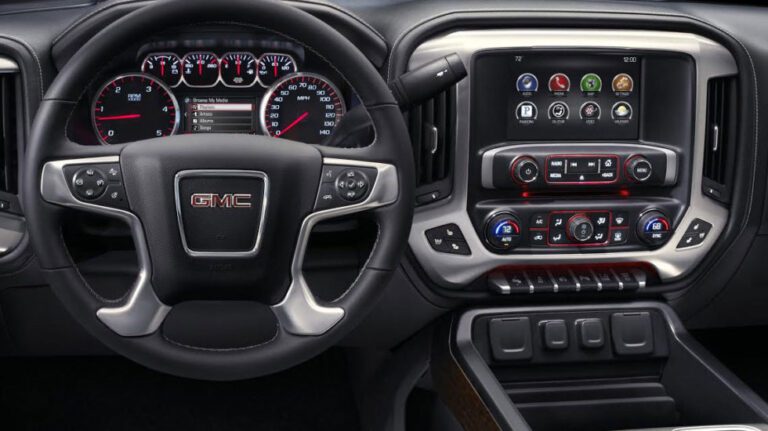
If you own a GMC truck or SUV, you have probably spent a good amount of time staring at that center screen. The GMC Infotainment System is genuinely impressive when it works well. It connects your phone, handles navigation, manages audio, and keeps you hands-free on the road. But when it starts acting up, it goes from being a convenience to a real headache in a hurry.
The frustrating part is that infotainment problems are not always obvious to diagnose. A frozen screen, a Bluetooth connection that keeps dropping, a navigation system that sends you the wrong way, or a touchscreen that stops responding entirely, these issues can feel random and difficult to pin down. But most of them have straightforward explanations and fixable solutions.
This guide covers everything you need to know about GMC Infotainment System problems, what causes them, how to diagnose them, and what to do about them without necessarily handing your vehicle over to a dealer every time something goes sideways.
The Most Common GMC Infotainment System Problems (And Why They Happen)
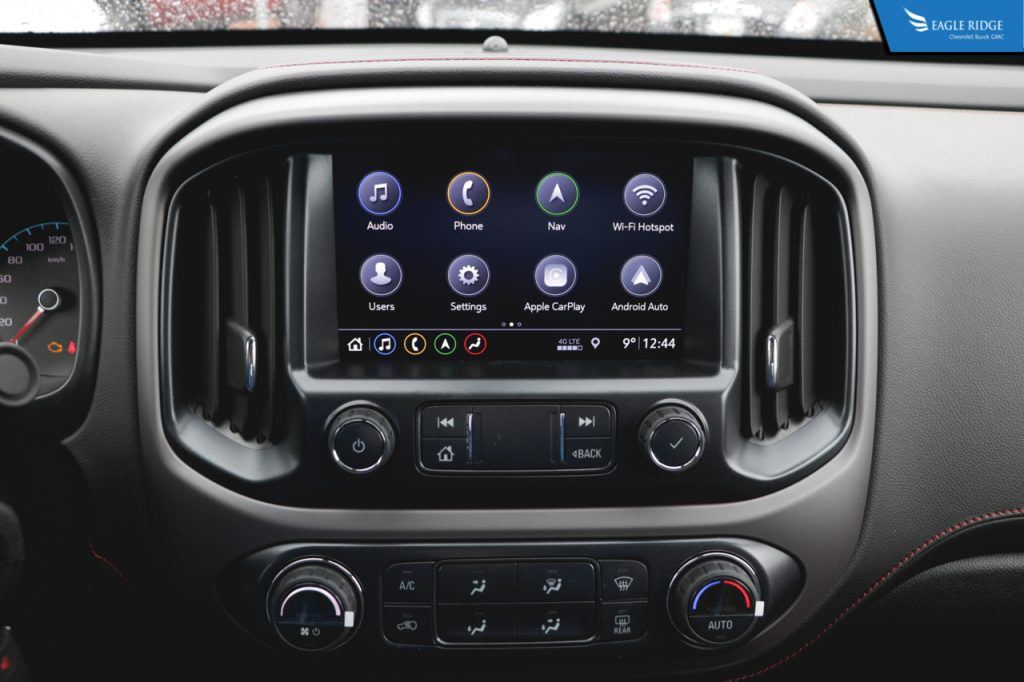
Before jumping into fixes, it helps to understand what you are actually dealing with. The GMC Infotainment System is essentially a computer mounted in your dashboard. Like any computer, it can run into software glitches, hardware limitations, and connectivity conflicts. Here are the problems that show up most often.
Touchscreen That Stops Responding or Registers the Wrong Input
This is one of the most commonly reported issues. You tap an icon and nothing happens. Or you touch one area of the screen and the system registers a completely different location. It can make the entire system feel unusable.
The cause is usually one of two things. Either the software needs an update, or there is a hardware fault developing with the touchscreen digitizer itself. In many cases, a system reboot resolves it immediately. If the problem keeps coming back after every reboot, you are likely looking at a deeper software issue or a failing touch panel.
Try this first: hold down the home button and the fast-forward button simultaneously for at least 10 seconds. The screen will go dark and the system will restart. Give it a minute to come back up fully before testing the touchscreen again.
Software Bugs Causing Freezes, Crashes, and Random Reboots
Software bugs are a fact of life with any modern infotainment system, and GMC’s platform is no exception. You might see the screen freeze mid-navigation, the system crash and restart on its own, or apps that simply refuse to load. Running outdated software is one of the biggest contributors here.
GMC releases over-the-air software updates specifically to address known bugs. If your system has not been updated recently, that alone could be the source of multiple problems at once. Check your system settings for available updates and install them. It sounds simple, but it genuinely fixes a significant percentage of reported software issues.
That said, even fully updated systems can have bugs. If a specific feature consistently crashes your system, note exactly what you were doing before it happened and report it to your dealer. Dealers can log the issue and flag it for a targeted software patch.
Audio Problems: No Sound, Skipping, or Radio Stations That Do Not Load
Audio issues on the GMC Infotainment System range from minor annoyances to completely silent cabin experiences. Common complaints include sound that cuts out intermittently, radio stations that fail to load or buffer constantly, audio that plays through the wrong speakers, and volume controls that stop responding.
A lot of these trace back to system software, particularly if the problem appeared after a recent update or after connecting a new device. Rebooting the system often clears temporary audio faults. If you are having issues with a specific radio station or streaming service, check whether the problem exists on other audio sources too. If only one source is affected, the issue is likely with that specific input or app rather than the audio hardware itself.
Video playback problems, such as a black screen when a video should be playing or a frozen video feed from the backup camera, can sometimes be tied to the same software stack. A reboot is the first move, followed by a software update check.
Bluetooth, Wi-Fi, and USB Connectivity Failures
Connectivity problems are probably the second most complained-about category after touchscreen issues. Bluetooth that pairs but never actually connects, Wi-Fi that shows a network but will not establish a stable connection, USB ports that charge your phone but do not allow data transfer, all of these are reported regularly across GMC models.
Here is something a lot of people do not realize about USB ports specifically. Many vehicles have multiple USB ports, and not all of them serve the same purpose. Some ports are charge-only. Others support both charging and data transfer for Android Auto or Apple CarPlay. If your phone connects but the screen mirroring feature does not work, try a different USB port. It sounds obvious, but it is a step many people skip.
For persistent Bluetooth issues, delete the vehicle from your phone’s paired devices list and delete your phone from the infotainment system’s paired devices list. Start the pairing process completely fresh. This clears out any corrupted pairing data that might be causing the connection to fail.
Android Auto and Apple CarPlay Compatibility Issues
Android Auto and Apple CarPlay are supposed to make using your phone in the car seamless. When they work, they are great. When they do not, they are genuinely maddening because you are dealing with two different software ecosystems trying to talk to each other through your vehicle’s system.
Compatibility problems often show up after a phone operating system update. Your phone updates to a new version of Android or iOS, and suddenly CarPlay or Android Auto stops connecting or loses features it had before. The fix is usually waiting for either GMC to release a system update that accounts for the new phone OS, or for the phone manufacturer to release a patch on their end.
In the meantime, make sure you are using a quality data cable, not just any USB cable. Cheap third-party cables frequently cause Android Auto and CarPlay connection failures even when they charge the phone just fine. Switch to the cable that came with your phone or a certified third-party option and test again before assuming the problem is with the vehicle system.
Voice Command Recognition That Misses or Misunderstands You
Voice commands are only useful when the system actually understands what you are saying. Many GMC owners report that the voice assistant misinterprets commands, fails to recognize destinations, or simply does not respond at all in certain situations.
Background noise is a major factor here. Road noise, HVAC running at full blast, passengers talking, and music playing all compete with your voice. The system’s microphone picks up everything, and if your command gets buried in ambient sound, it will either mishear you or fail entirely.
Speaking clearly and at a normal pace helps more than people expect. Shouting does not improve recognition. Pausing briefly after the activation prompt before speaking your command actually gives the system time to fully engage before you start talking. If a specific type of command consistently fails, try rephrasing it. Saying “Navigate to 123 Main Street” often works better than “Take me to 123 Main Street.”
Navigation System Problems: Wrong Directions, Outdated Maps, Slow Response
Built-in navigation that gives you outdated directions, routes you the wrong way, or takes forever to calculate a route is worse than useless. It is actively dangerous. GMC’s navigation system relies on map data that needs to be updated periodically, and if those updates have not been applied in a while, the system may be working from maps that are years old.
Road changes, new construction, updated speed limits, and rerouted highways all require map data updates to reflect accurately in the navigation system. Check for available map updates through GMC’s official channels or your vehicle’s connected services. Installing updates keeps the navigation performing as it should.
Slow response times when entering addresses or calculating routes can point to the system being overloaded with background processes. A reboot clears the system’s memory and often resolves sluggish navigation performance without needing any updates at all.
App Crashes and Installation Failures
Apps built into the infotainment system, whether it is a streaming service, a connected vehicle app, or a third-party integration, can crash, fail to update, or simply refuse to open. This usually traces back to one of two issues: either the app itself has a bug in the version installed on your system, or the underlying infotainment software is out of date and no longer compatible with the current version of the app.
Check for both infotainment system software updates and individual app updates. If a specific app is crashing consistently, try removing it and reinstalling it. If reinstallation is not possible through the system’s interface, contact your dealer. They have access to diagnostic tools that can push specific app updates or reinstall problematic applications through the service system.
Battery Drain Linked to the Infotainment System
This one catches people off guard. If you sit in a parked vehicle with the infotainment system running and the engine off, the system draws power directly from the battery. Done occasionally for short periods, it is not a problem. But if this becomes a habit, or if the system is not properly powering down when it should, you can drain the battery enough to prevent the vehicle from starting.
Some owners have reported their GMC infotainment system staying partially active even after the vehicle is locked and the engine is off. If you notice your battery draining faster than normal and you cannot identify another cause, this is worth checking. Turn the system fully off before exiting the vehicle rather than relying on it to shut down automatically. If the problem persists, have a shop check whether the system is properly entering sleep mode when the vehicle is off.
How to Reset Your GMC Infotainment System (The Right Way)
A reset is the single most effective first response to almost any infotainment problem. Think of it the same way you think about restarting a computer that is acting up. It clears temporary files, resets active processes, and gives the system a clean start. Here is how to do it properly depending on which version of the system you have.
Soft Reset for Most GMC Infotainment Systems
For most GMC vehicles with the standard infotainment system, press and hold the home button and the fast-forward button at the same time. Hold both buttons for at least 10 seconds without releasing. The screen will go black and the system will begin rebooting. Wait for the full startup sequence to complete before testing anything. This takes anywhere from 30 seconds to two minutes depending on the system version.
Reboot Method for 2017 to 2019 GM Infotainment Systems
If your vehicle has the GM Infotainment system from the 2017 to 2019 model years with built-in OnStar, there is a specific reboot method that works well. Press the OnStar call button and then immediately press it again to hang up. This sequence triggers a system reboot that can clear software hangs and unresponsive touchscreen states.
Factory Reset for GMC IntelliLink Systems
If a soft reset does not resolve the issue, a factory reset is the next step. This wipes all user-saved data and returns the system to its original out-of-the-box state. You will lose saved profiles, paired devices, preset radio stations, and navigation favorites. So understand what you are giving up before you proceed.
Here is how to do it on the IntelliLink system:
- From the Home screen, tap the Settings icon.
- Scroll down and select Return to Factory Settings.
- You will see three options: Restore Vehicle Settings, Clear All Private Data, and Restore Radio Settings.
- Select Restore Vehicle Settings to perform a full factory reset of the infotainment system.
- Confirm the action when prompted and allow the system to complete the reset process.
After the reset, the system will restart and you will need to set up your preferences from scratch. Test the problem that was occurring before the reset to see if it has been resolved.
Hard Reset by Disconnecting the Battery
If both soft and factory resets fail to fix the problem, a hard reset by disconnecting the vehicle battery is worth trying. Turn the vehicle off completely. Disconnect the negative terminal from the battery. Wait at least 5 minutes, then reconnect the terminal and start the vehicle. This forces a complete power cycle on every system in the vehicle, including the infotainment computer, and can resolve issues that software resets alone cannot fix.
One thing to keep in mind: disconnecting the battery will also reset your radio presets, your clock, and potentially some vehicle settings depending on the model year. Have those settings noted beforehand so you can restore them quickly afterward.
How to Customize Your GMC Infotainment System to Fit Your Needs
Once the system is working properly, taking time to set it up the way you want makes a significant difference in how enjoyable it is to use daily. The GMC Infotainment System offers more customization options than most owners realize. Here is how to work through the main ones.
- Access the Settings Menu. From the Home screen, tap the Settings icon. This is your central hub for all customization options. Everything discussed below lives somewhere within this menu.
- Create a User Profile. If multiple people use the vehicle, setting up individual profiles saves everyone from fighting over preferences. Navigate to the User tab in Settings, then follow the prompts to create a new profile. Each profile stores its own radio presets, navigation favorites, screen brightness preferences, and audio settings. When a different driver gets in, they can switch to their profile and the system adjusts automatically.
- Adjust Audio and Equalizer Settings. Head to the Audio tab in Settings. Here you can control bass, midrange, and treble levels, adjust fade and balance between front and rear speakers, and set volume limits for specific sources. Take time to tune these to how you actually listen rather than leaving them on the factory default. A few minutes of adjustment can make a noticeable difference in sound quality.
- Set Display Preferences. The Display tab controls screen brightness, auto-dimming behavior, and screen timeout settings. If the screen is too bright at night, auto-dimming tied to the vehicle’s ambient light sensor is usually the best setting. Adjust the timeout so the screen does not go dark too quickly during navigation use.
- Configure Navigation Options. If your GMC is equipped with built-in navigation, go to Settings and then the Navigation tab under System. Here you can save home and work addresses, set preferred route types (fastest, shortest, avoiding highways), and customize the map view. Setting up your most-used destinations as favorites saves time every day.
- Set Up Phone and Messaging Preferences. Under the Phone tab in Settings, you can manage paired devices, set notification preferences for incoming calls and messages, and configure how the system handles audio during calls. If you use hands-free calling frequently, spending a few minutes here makes that experience much more reliable and consistent.
Taking 15 to 20 minutes to go through these settings when the vehicle is new, or right after a factory reset, pays dividends every single drive afterward.

Vehicle-Specific Infotainment Problems Worth Knowing About
While the issues covered above apply broadly across the GMC lineup, there are some vehicle-specific problems that have been documented and are worth flagging separately.
The 2021 GMC Sierra Black Screen Problem in Cold Weather
One of the more widely reported vehicle-specific issues involves the 2021 GMC Sierra. Owners in colder climates reported that the infotainment screen would come up completely black with no audio when starting the vehicle in low temperatures. The system appeared to power on, but nothing would display and no sound would come through.
This is not a hardware failure in most cases. It is a software bug that causes the system to initialize incorrectly under cold-start conditions. General Motors acknowledged the problem and released an infotainment fix covering 2021 Chevy, Buick, GMC, and Cadillac models. If you own a 2021 Sierra and have experienced this problem, check with your dealer to confirm the software fix has been applied to your vehicle.
In the meantime, if this happens, try the soft reset method described above. Hold the home and fast-forward buttons for 10 seconds. In most cases, the system will reboot and come up normally after the restart.
Smartphone Compatibility Varying by Model Year
This is not a bug exactly, but it causes a lot of frustration. Older GMC infotainment systems, particularly those from 2017 and earlier, may not be fully compatible with newer smartphones running current versions of Android or iOS. Phone manufacturers push operating system updates constantly, and older vehicle systems do not always keep pace.
If you upgraded your phone and suddenly the infotainment connectivity stopped working properly, that is likely the cause. Sometimes a software update from GMC bridges the compatibility gap. Other times, the hardware simply cannot support the newer phone OS features. Checking GMC’s official compatibility guidance for your specific model year can help you understand what is and is not supported.
USB Port Confusion Across GMC Models
Multiple GMC models have different USB port configurations, and this creates consistent confusion. A port that looks identical to the one next to it may only charge and not transfer data. Owners plug in their phone, it charges, but Android Auto or CarPlay will not launch, and they assume the system is broken.
Check your vehicle’s owner manual to identify which USB ports support data transfer for smartphone integration. The correct port is usually labeled or located in a specific position in the center console. Using the right port resolves this issue immediately without any technical troubleshooting required.
Keeping Your GMC Infotainment System Running at Its Best
Preventing problems is always easier than fixing them after they show up. Here are practical habits that keep the GMC Infotainment System performing reliably over the long term.
Install Software Updates Promptly
When a software update is available, install it. Do not dismiss the notification and forget about it. GMC releases updates specifically to fix known bugs, improve compatibility with new phone operating systems, and patch security vulnerabilities. Running outdated software is the single most common reason for recurring infotainment problems across every vehicle brand, not just GMC.
Some updates can be installed over the air through the vehicle’s Wi-Fi connection. Others require a dealer visit. Either way, staying current with updates eliminates a significant portion of potential problems before they ever occur.
Keep the System and Screen Clean
A dirty touchscreen is not just an aesthetic issue. Fingerprints, dust, and grime can actually affect touch sensitivity over time, particularly if buildup concentrates around the edges of the screen where touch registration is most active. Clean the screen regularly with a soft microfiber cloth. Avoid using household glass cleaners, as those can damage the screen coating. Use a cleaner specifically rated for electronic screens if a dry cloth is not enough.
Reboot the System Periodically Even When Everything Seems Fine
Just like a computer benefits from occasional restarts, the GMC Infotainment System benefits from periodic reboots. Once a week or so, cycle the system off and back on. This clears temporary memory, closes background processes that may be building up, and keeps the system running responsively. It takes about a minute and can prevent a lot of small issues from turning into bigger ones.
Manage Paired Devices Regularly
If you have had the same vehicle for a few years, your infotainment system probably has a list of paired Bluetooth devices that includes phones you no longer own, old tablets, and devices belonging to passengers who sat in your car once two years ago. A long list of paired devices can slow down Bluetooth performance and cause connection confusion.
Go into the Bluetooth settings periodically and remove devices that you no longer use. Keep the list lean. This improves connection speed and reliability for the devices you actually use regularly.
When to Stop Troubleshooting and Go to the Dealer
There is a point where DIY troubleshooting reaches its limit and professional help is genuinely the right call. Here is how to recognize when you have hit that point.
- The screen is physically cracked, damaged, or shows dead zones that do not respond regardless of what you try
- The system reboots itself randomly and repeatedly throughout a drive with no user input
- A factory reset and battery disconnect have both been performed and the problem still exists
- The system fails to boot at all, displaying nothing or getting stuck on a loading screen
- Multiple features fail simultaneously in a way that suggests a hardware issue rather than software
- The problem only started after a specific event, such as a collision, water intrusion, or a recent repair involving dash components
When you do go to the dealer, bring as much specific information as you can. Note exactly what the problem is, when it happens, what you were doing when it first appeared, and what steps you have already taken to fix it. That information cuts diagnostic time significantly and helps the technician get to the right solution faster.
Also ask the dealer to check for any Technical Service Bulletins related to your specific model year and infotainment system version. TSBs are documented fixes for known problems, and if one exists for your issue, the dealer can apply it directly without needing to diagnose from scratch.
GMC Infotainment Problem Quick Reference Guide
| Problem | Most Likely Cause | First Step to Try |
|---|---|---|
| Touchscreen not responding | Software hang or digitizer fault | Soft reset (home + fast-forward, 10 seconds) |
| System freezing or crashing | Outdated software or memory overload | Check for software updates, then reboot |
| No audio or distorted sound | Software bug or audio settings conflict | Reboot system, check audio settings |
| Bluetooth keeps disconnecting | Corrupted pairing data | Delete and re-pair the device from scratch |
| CarPlay or Android Auto not working | Wrong USB port, bad cable, or software conflict | Switch USB ports, try a different data cable |
| Voice commands not recognized | Background noise or command phrasing | Reduce ambient noise, rephrase commands |
| Navigation giving wrong directions | Outdated maps | Install available map updates |
| App crashes or will not open | App version incompatibility | Check for app and system software updates |
| Battery draining when parked | System not entering sleep mode properly | Manually power off system before exiting vehicle |
| Black screen on cold start (2021 Sierra) | Known software bug | Reboot system, check for GM infotainment fix at dealer |
Common Questions About the GMC Infotainment System
How do I update the software on my GMC Infotainment System?
On newer GMC models with Wi-Fi capability, updates can come through over the air and you will see a notification on screen when one is available. On older models, updates are typically installed at a dealer service visit. You can also check GMC’s owner support website by entering your VIN to see what updates are available for your specific vehicle.
Will a factory reset delete my navigation maps?
A factory reset will clear user-saved data including profiles, paired devices, and saved destinations. However, the core navigation map data is stored separately and is typically not wiped by a factory reset. That said, it is worth confirming this for your specific model year before proceeding, as system architectures can vary between generations.
Why does my GMC Infotainment System keep rebooting itself while I drive?
Spontaneous reboots while driving usually point to one of three causes: a software bug that triggers a crash loop, a power supply issue to the infotainment unit, or a loose wiring connection behind the head unit. Try a full factory reset first. If the reboots continue, this is a dealer-level diagnosis because it may involve electrical or hardware inspection that goes beyond what you can check yourself.
My GMC is older. Can I upgrade the infotainment system to a newer version?
In some cases, yes. Aftermarket head units that replicate or improve on the factory infotainment features are available for many GMC models. The feasibility depends on your specific vehicle and trim level, since some models integrate the infotainment system with other vehicle controls in ways that make replacement complicated. Consulting with a reputable car audio shop that specializes in GM vehicles is the best way to understand your options.
One Final Thought Worth Taking With You
The GMC Infotainment System is genuinely one of the better factory setups available in a truck or SUV at this price point. Most of the problems that owners run into are software-related, which means they are fixable without expensive hardware replacements. The key is knowing the right sequence of steps to work through rather than immediately assuming the worst.
Start with a reboot. Check for software updates. Re-pair your devices if connectivity is the issue. Run a factory reset if the problem persists. And if none of that resolves it, take it to someone who can inspect the hardware directly and check for documented fixes through GMC’s service system.
Staying current with software updates is the single best thing you can do to prevent most of these problems from appearing in the first place. If your system has not been updated in over a year, that is the first place to start, before anything else.